How to Exit Elsi or Completely Disable the Application
If Elsi is still running in the background or you want to fully close it, there are two safe and effective ways to exit the program. This guide walks you through both methods so you can choose the fastest option that works best for you.
Fast Tip:
Choose one of the methods below to quickly close Elsi:
- With Elsi menu (recommended)
- With Task Manager (force close)
Close Program Using Elsi Menu
Step 1: Hide All Open Windows
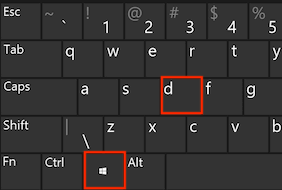
- Press the
Win+Dkeys together on your keyboard - All open windows will be minimized, and your desktop will appear
Step 2: Open Hidden Icons (System Tray)
- Look at the bottom-right corner of your screen
- Click the hidden icons (tray icons) arrow
- You should see the Elsi icon among the running applications

Step 3: Open Elsi Menu
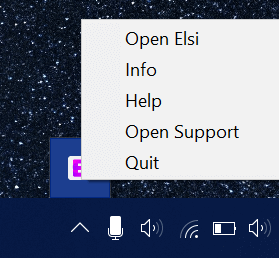
- Right-click on the Elsi tray icon
- A context menu will appear
Step 4: Quit Elsi
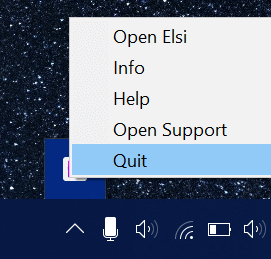
- Click
Quitfrom the menu - A black dialog box may briefly appear
- If it does not close automatically, click the
Xbutton to close it
Close Program Using Task Manager
Use this method if Elsi does not respond or cannot be closed normally
Step 1: Open Task Manager
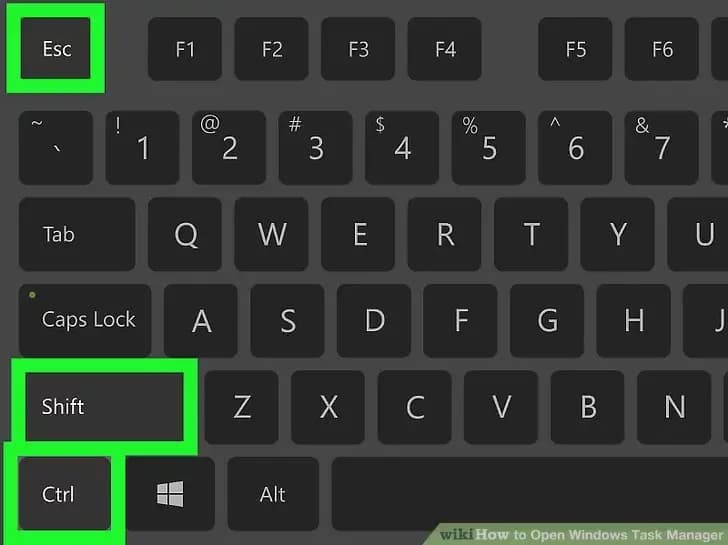
- Press
Ctrl+Shift+Escon your keyboard - Task Manager will open
(Learn more (opens in a new tab))
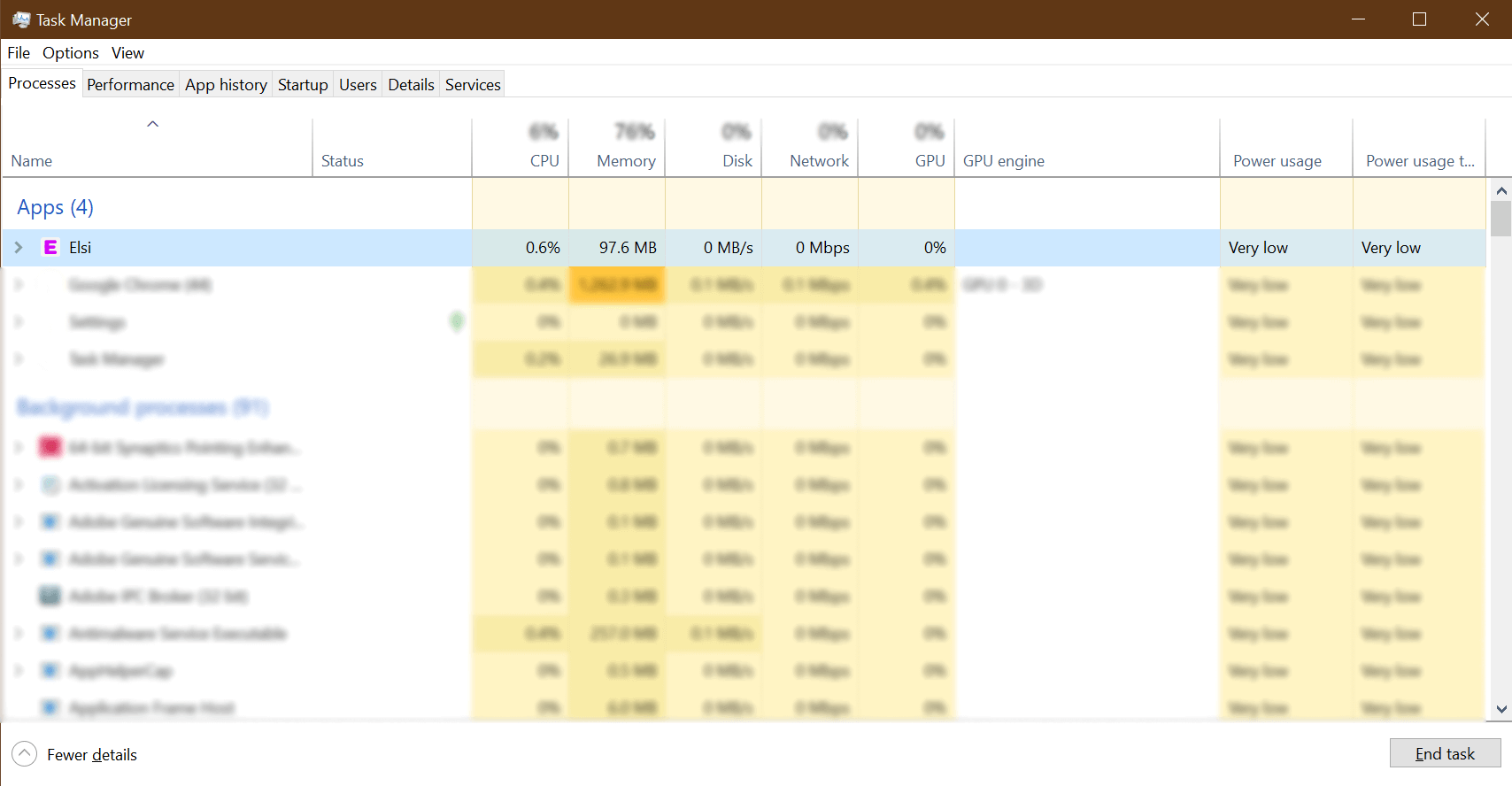
Step 2: Locate Elsi
- In the list of running applications, find Elsi
- Left-click on "Elsi" application to select it
Step 3: End the Task
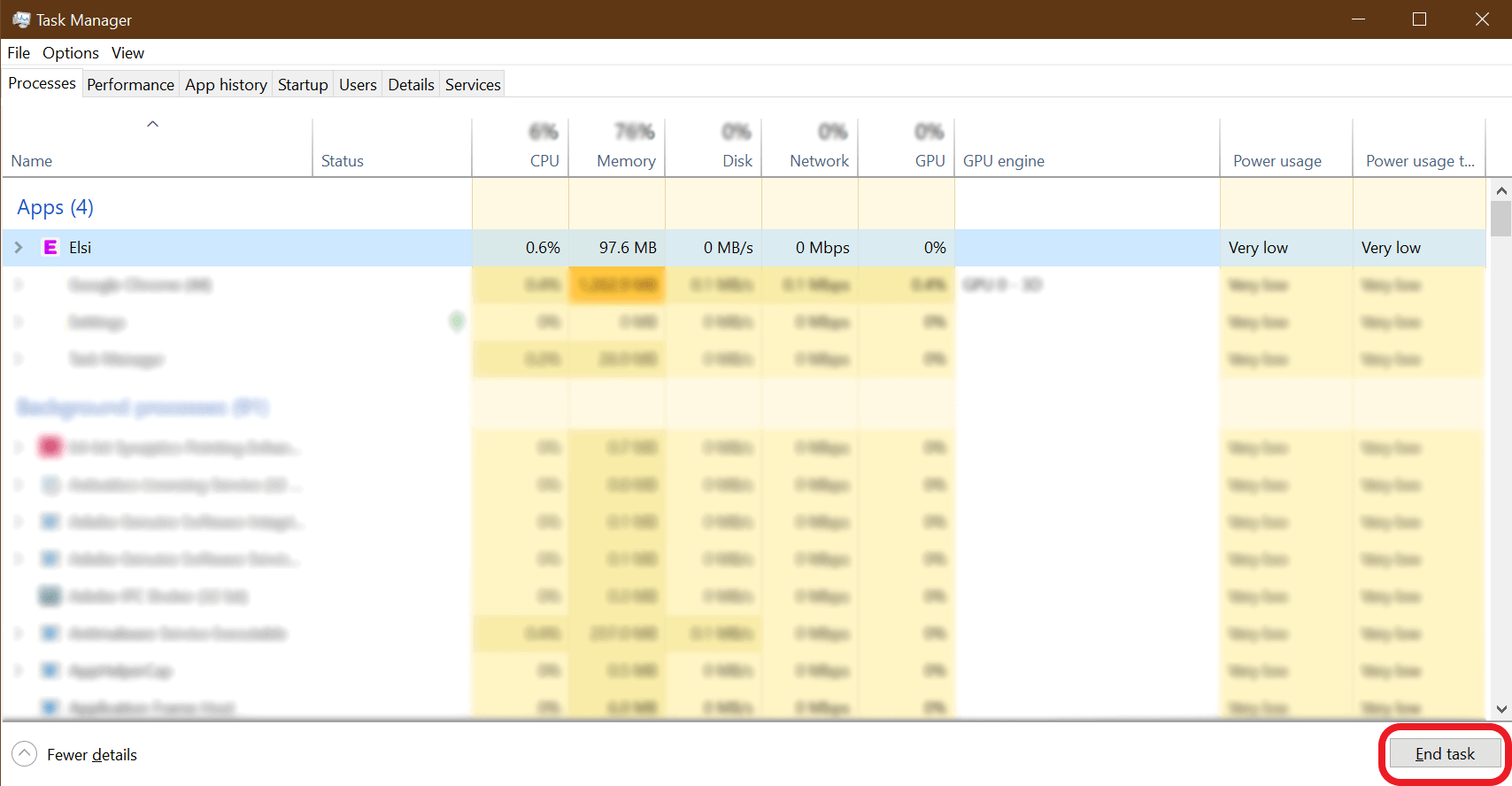
- Click
End taskin the bottom-right corner
OR - Press the
Deletekey on your keyboard
That’s It!
🎉 Hooray! You’ve successfully exited Elsi.
If Elsi continues to run unexpectedly or restarts automatically, make sure it is not set to launch on system startup, or contact Sealzi support for further assistance.