Why does my Elsi assistant say “You don't have all required files, download them from website”
If Elsi reports that required files are missing or verbally says “You don't have all necessary files, download them from website”, it means some essential components are not installed on your system. This guide explains why this happens and how to fix it.
Fast way:
You can immediately fix this issue by downloading (opens in a new tab) and installing the required files installer below.
⚠️ Available for Windows PC only.
Why This Error Appears
This message usually occurs in one of the following cases:
- You did not install the official Elsi version from the Elsi website (opens in a new tab)
- Required Elsi files were deleted accidentally or intentionally
When this happens, you may see a notification like this:
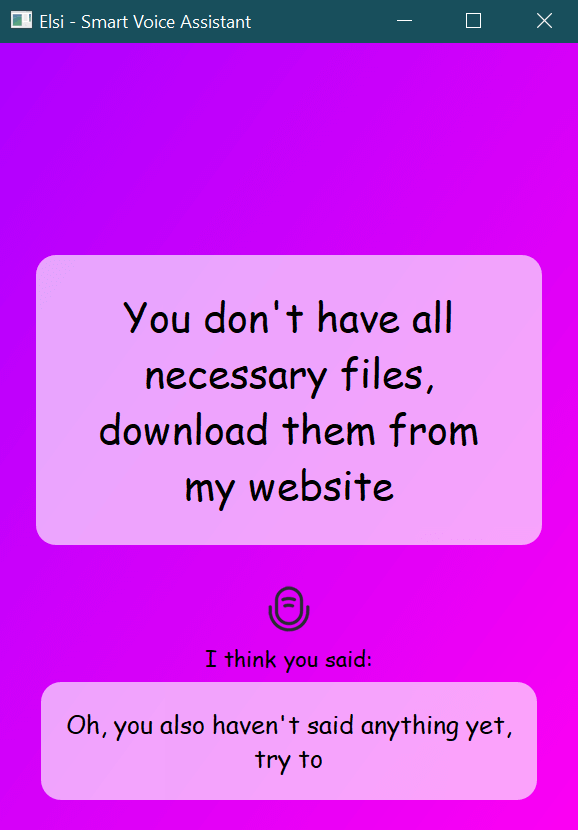

Or hear Elsi say:
“You don't have all necessary files, download them from website”
How to Fix: Install Required Files for Elsi
Step 1: Download the Required Files Installer
- Click the download button below
- The file name will be
Elsi_required_files.exe
This installer is Windows-only. Elsi does not support macOS or Linux
➡️ Download: Elsi_required_files.exe (opens in a new tab)
Step 2: Finish Downloading the File
Depending on your browser, the download process may look slightly different:
on Microsoft Edge Click the downloaded file name

Step 3: Start the Installer
- Click on
Elsi_required_files.exe - If Windows asks for permission, click
Yes - Choose your preferred language
- Follow the setup instructions until installation completes
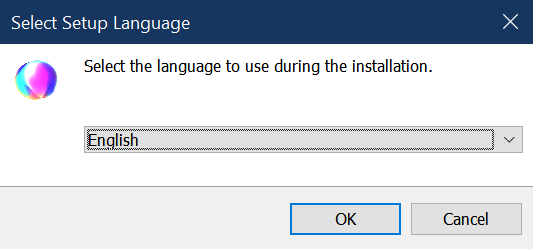
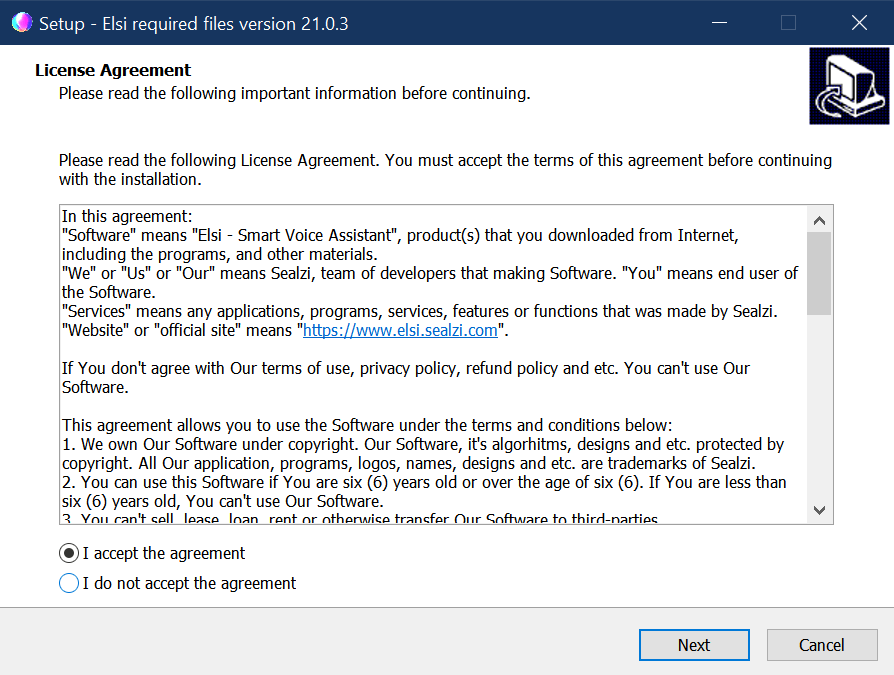
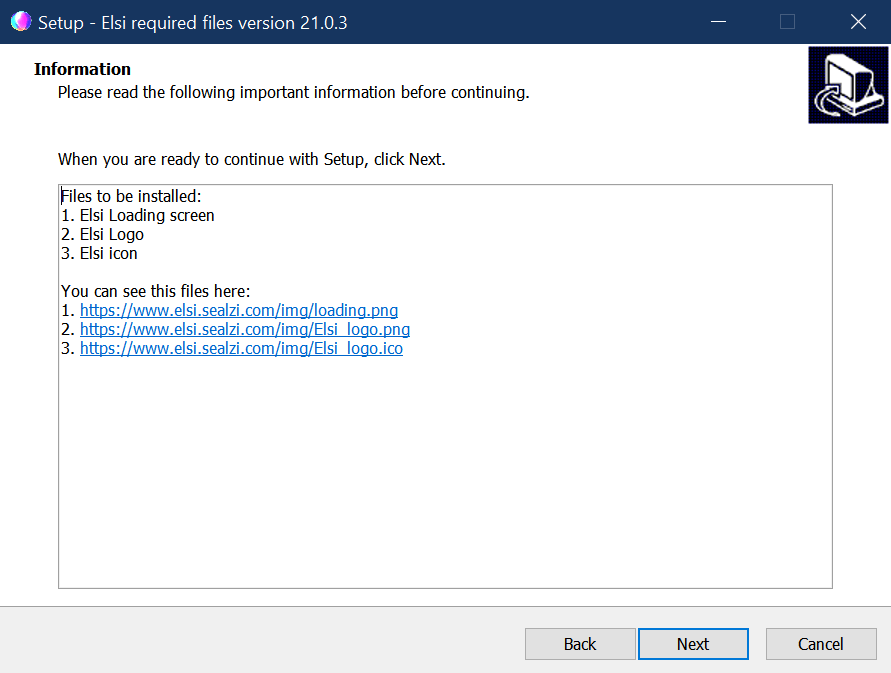
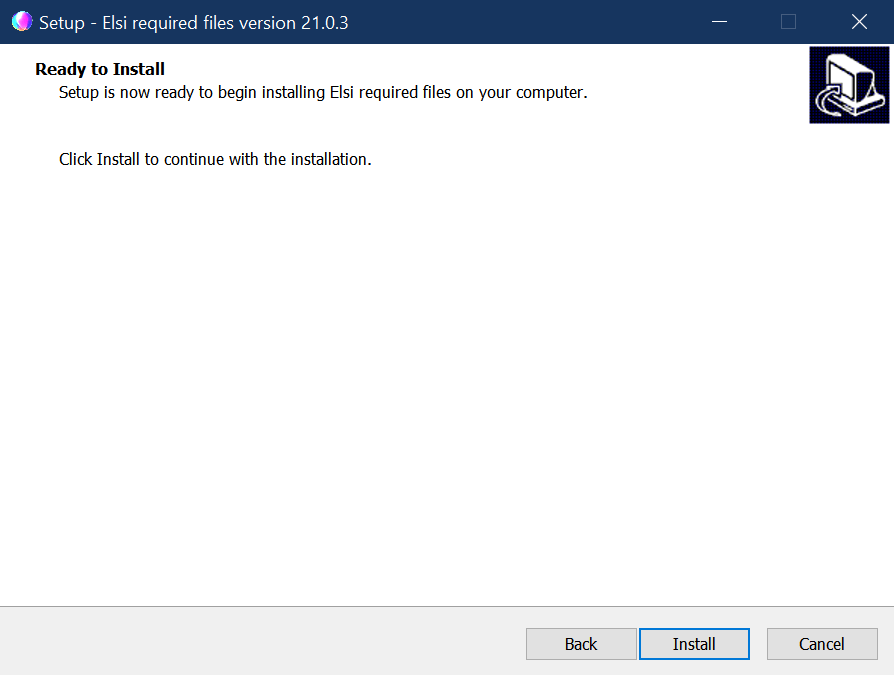
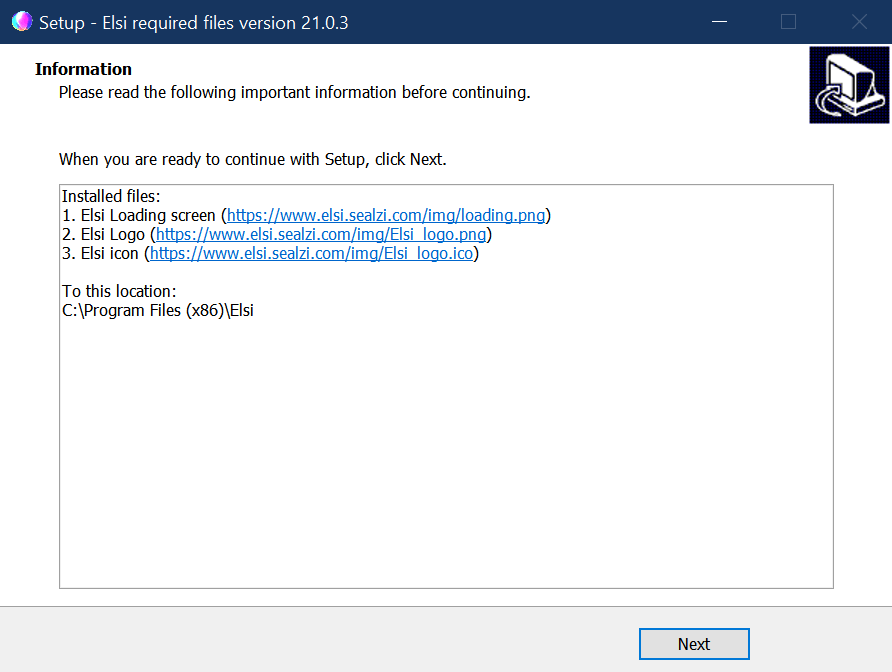
Step 4: Finish Installation
- Click
Finish - Start Elsi again
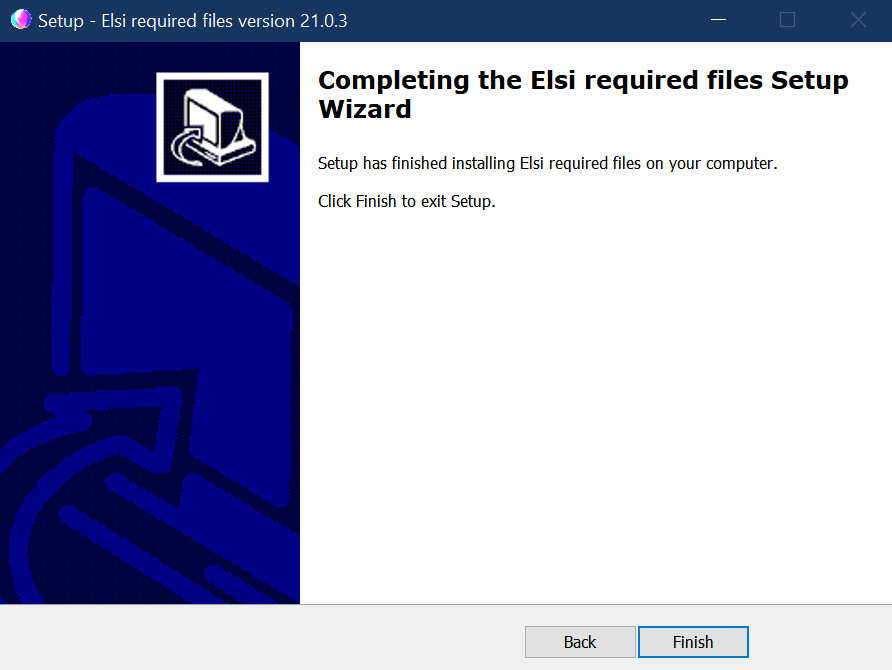
Done! 🎉
✅ Elsi should now start without errors
✅ The missing required files warning should be gone
✅ Voice and notification errors should no longer appear
If the issue continues after installing the required files, please reinstall Elsi from the official website or contact Sealzi support.