Cannot Connect to Main App
This error occurs when the Vauz extension's native messaging connection fails, meaning the extension cannot establish a communication port with the main Vauz application. This typically happens when either:
- The main Vauz application is not installed or not running
- The native messaging host is not properly registered
- There are conflicts with existing extension installations
Primary Solution: Complete Reinstallation
The most effective way to resolve connection issues is to completely remove both the main Vauz application and the browser extension, then reinstall them in the correct order
Don't worry about losing your data: reinstalling Vauz does not remove your saved passwords, and your vault will be there when you open the app again. If you would like a copy of your entries before you start, you can export them from Import / Export pane inside Vauz first. Online backup is in development and not yet available
Step 1: Uninstall the Main Vauz Application
Step 2: Remove the Browser Extension
Step 3: Restart Your Browser
Close all browser windows completely, then reopen your browser
Step 4: Reinstall the Main Vauz Application
- Visit the official Vauz website (opens in a new tab) and download (opens in a new tab) the latest version
- Install the application following the on-screen instructions
- Launch the Vauz application and complete any initial setup
Step 5: Reinstall the Browser Extension
- Visit the official Vauz website (opens in a new tab) or your browser's extension store
- Download and install the Vauz Autofill extension for your browser
- Complete the registration process to connect to the main Vauz app
Step 6: Verify the Connection
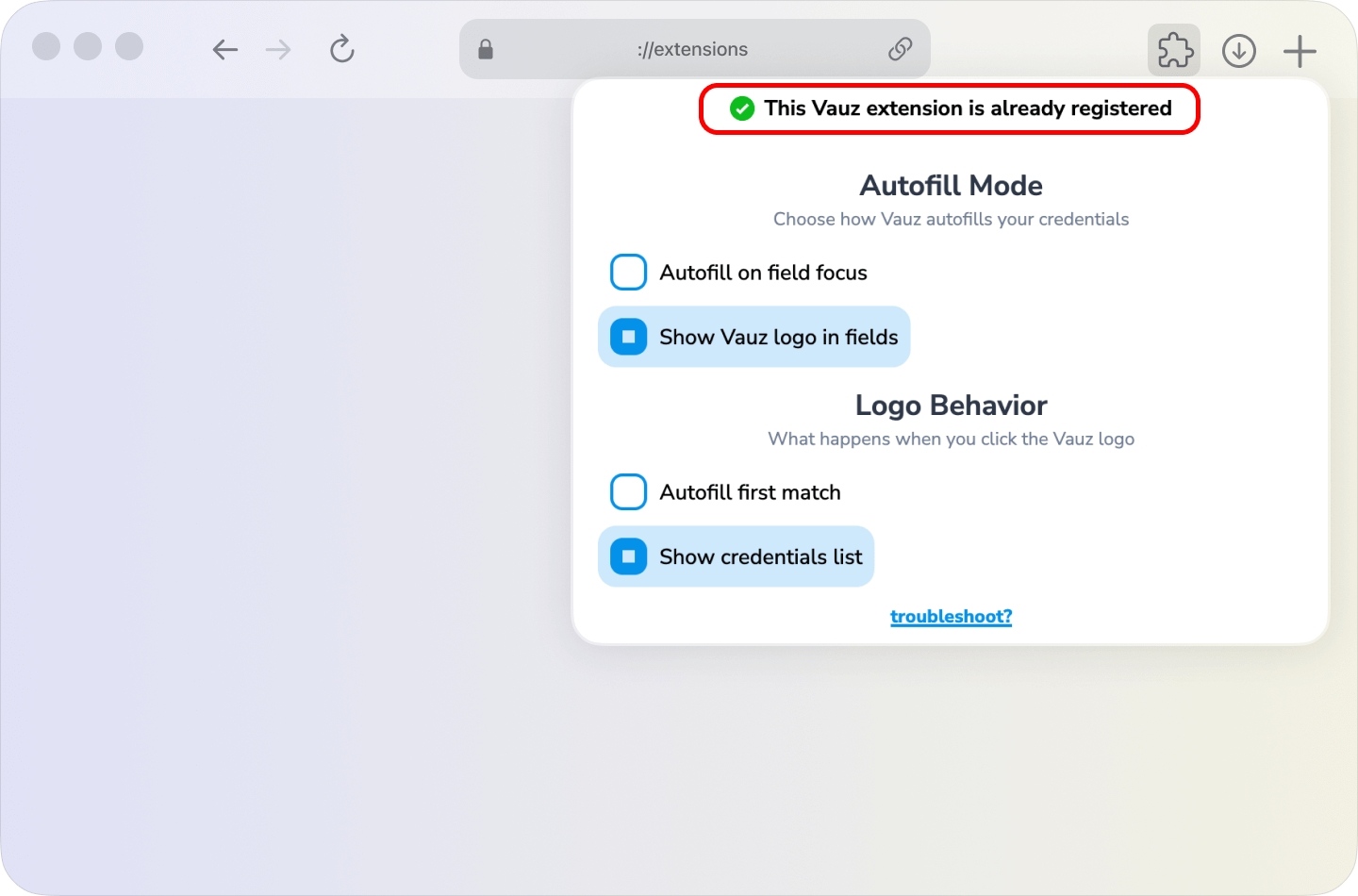
- Click on the Vauz Autofill extension icon in your browser toolbar
- You should see a connection confirmation or registration prompt
- Follow any on-screen instructions to complete the setup
If the Primary Solution Doesn't Work
If reinstalling doesn't resolve the issue, try these additional steps:
Step 1: Update Your Browser
Ensure you're using the latest version of your browser:
Step 2: Clear Browser Cache and Cookies
Step 3: Restart Your Computer
A full system restart can resolve underlying system conflicts
Step 4: Repeat the Complete Reinstallation
Follow Steps 1-6 from the primary solution above.
Still Having Issues?
If none of the above solutions work, please contact our support team with the following information:
- Your operating system and version
- Your browser type and version
- Steps you've already tried
- Any error messages you're seeing
- Whether you're using antivirus software or firewall that might be blocking the connection
After Updating or Reinstalling Vauz
Autofill runs through a small helper process that your browser starts when it first needs it, and keeps for as long as your browser stays open. A helper started before an update carries on afterwards, still running the version it began with
Vauz handles this on its own: once the app it came from has been replaced, the helper finishes whatever request it is working on and steps aside, so your next autofill starts a fresh one from the new version. Reloading the extension does not do this, because the helper belongs to the browser rather than to the extension. If you would rather not wait for your next autofill, quit and reopen your browser