How to Register the Vauz Autofill Browser Extension
Overview
The Vauz Autofill browser extension works by establishing a secure connection with the main Vauz desktop application. This connection allows the extension to securely access your password vault and autofill credentials on websites. The registration process involves cryptographic key exchange and user approval to ensure security
Prerequisites
Before registering the extension, ensure you have:
- Vauz Desktop Application: The main Vauz password manager app must be installed and running on your computer
- Browser Extension: The Vauz Autofill extension installed from your browser's extension store
- Active Vauz Account: You should be logged into your Vauz account in the desktop application
Step-by-Step Registration Process
Step 1: Install the Extension
Step 2: Initiate Registration
- Click the Vauz extension icon in your browser toolbar
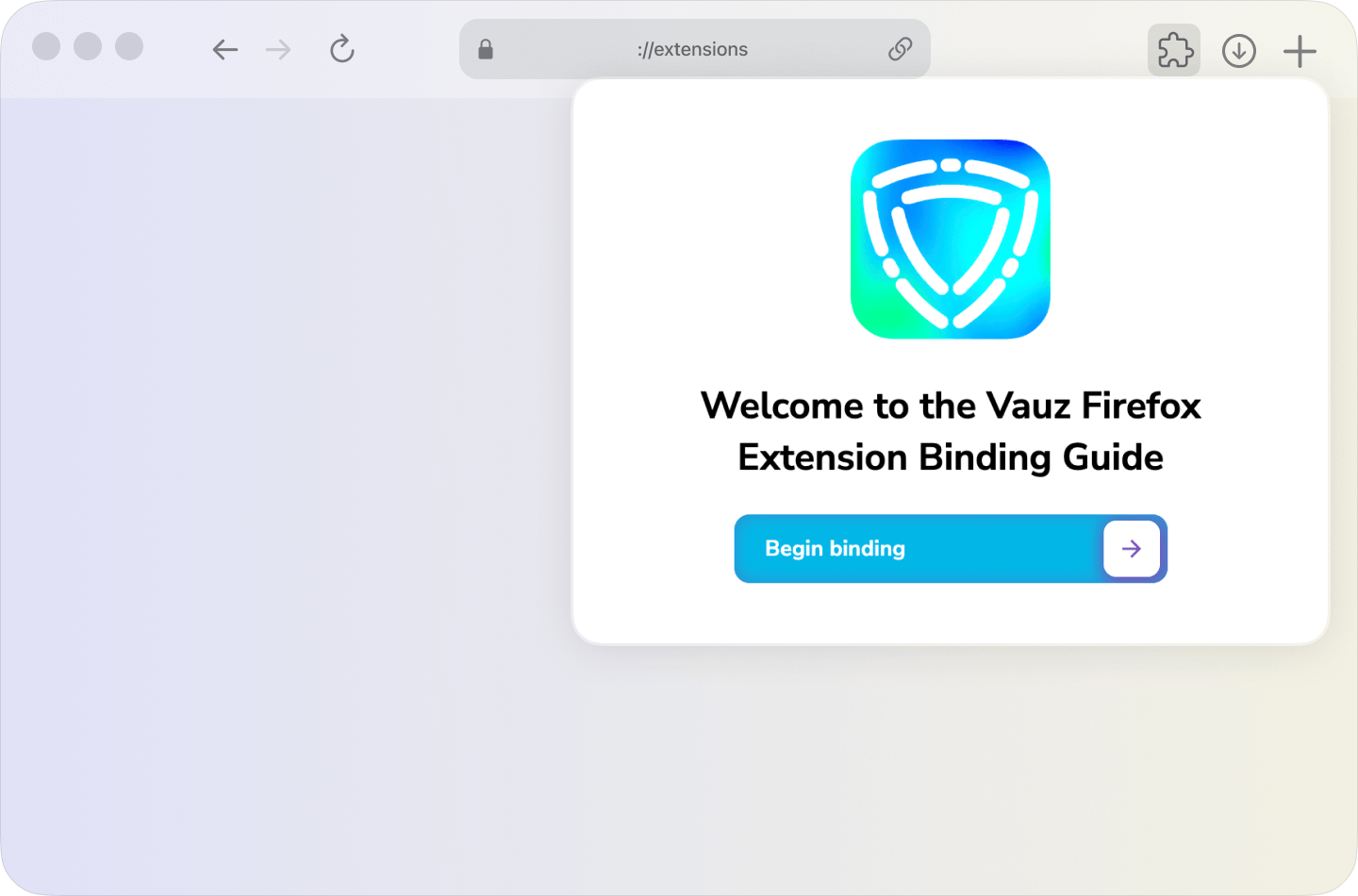
- You'll see a welcome screen with a
Begin bindingbutton - Click
Begin bindingto start the registration process
Step 3: Approve the Connection
When you click Begin binding, the following happens automatically:
- The extension attempts to connect to the Vauz desktop application using native messaging
- The extension sends a registration request to the desktop app containing:
- A unique extension identifier
- The extension's public keys
- Metadata (extension name and origin)
Step 4: User Approval
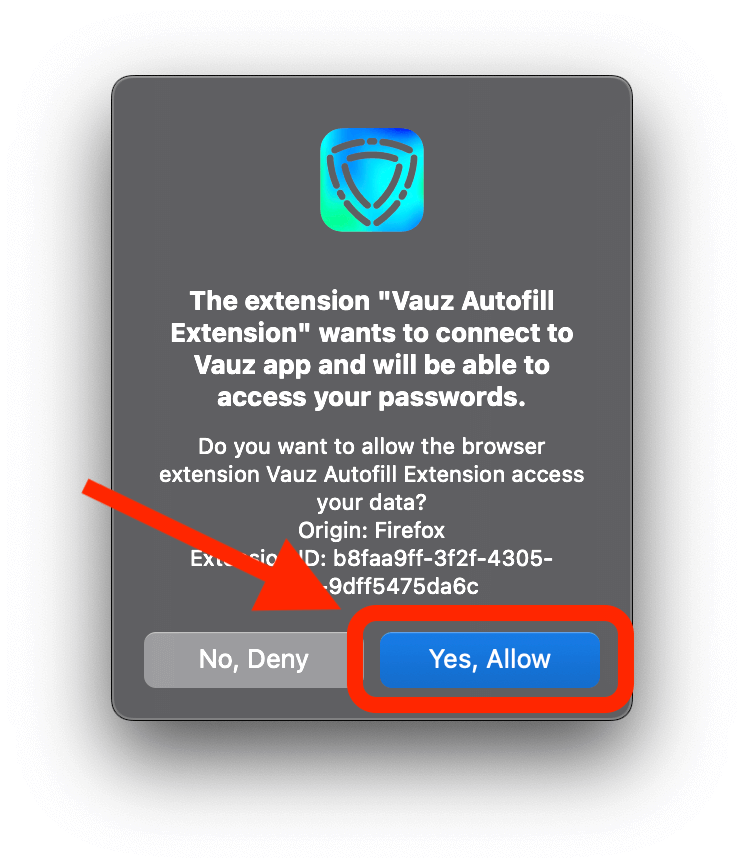
- A popup window will appear from your Vauz desktop application
- The popup will ask: "Do you want to allow this extension to connect?"
- Click
Yes, Allowto approve the connection
Step 5: Registration Complete
Once you approve the connection:
- The desktop app sends back its public key to the extension
- Both applications now have each other's public keys for secure communication
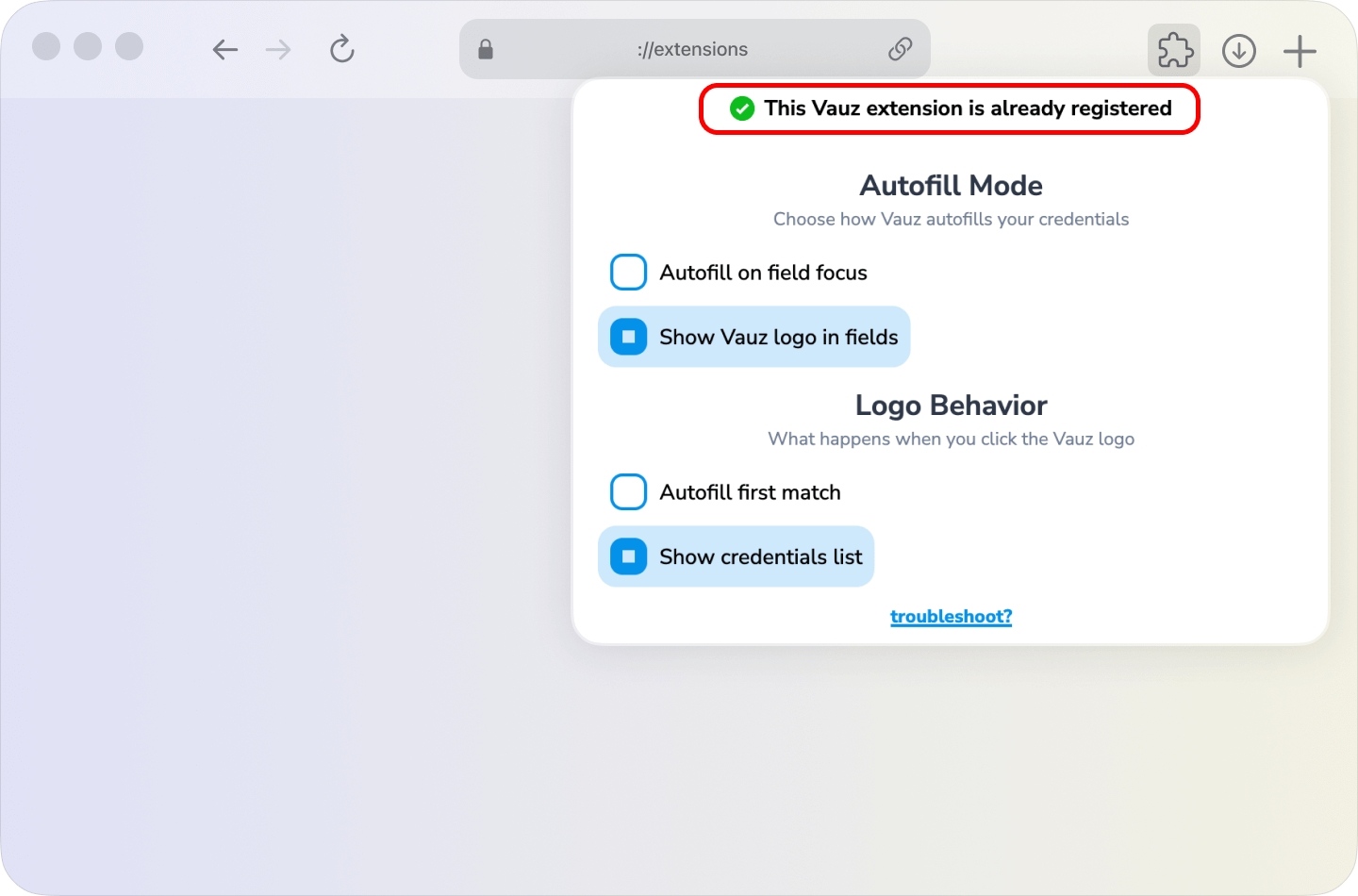
- You'll see a success notification and be redirected to a "Thank You" page
- The extension is now registered and ready to use
What Happens During Registration
The registration process establishes a secure communication channel between the browser extension and desktop application using industry-standard cryptography:
- RSA Key Exchange: Both applications exchange public keys for authentication and encryption
- Native Messaging: Uses your browser's native messaging API to communicate between browser and desktop app
- Secure Storage: Keys are stored securely in the browser's local storage
- Unique Identification: Each extension installation gets a unique identifier
Troubleshooting Common Issues
Issue: Registration popup doesn't appear
Symptoms: Clicking Begin binding doesn't show the approval popup
Solutions by Browser:
Issue: Registration rejected
Symptoms: Notification says "Extension registration rejected by user"
- Make sure you click
Yes, Allowin the Vauz desktop popup - Try the registration process again
- Check if another extension instance is already registered
Issue: Extension stops working after computer restart
Symptoms: Extension shows as registered but can't autofill passwords
- Ensure Vauz desktop application starts automatically with your computer
- Re-register the extension if the desktop app wasn't running during browser startup
See troubleshooting steps if the issue persists
Security Information
The Vauz extension uses multiple layers of security:
- End-to-end Encryption: All communication between extension and desktop app is encrypted
- Challenge-Response Authentication: Each credential request requires cryptographic proof
- Domain Verification: Credentials are only filled on verified domains
- User Approval: All connections require explicit user consent
Frequently Asked Questions
Q: Can I register multiple browsers with the same Vauz account?
A: Yes, each browser extension registers independently and can coexist
Q: What happens if I reinstall the extension?
A: You'll need to re-register it with the main Vauz desktop application
Q: Is the registration process secure?
A: Yes, it uses RSA key exchange and native messaging to establish a secure connection
Q: What if I deny the registration?
A: The extension will remain unregistered and cannot access your password vault
Need More Help?
If you're still having issues:
Contact Vauz support with your specific error messages and system information
After Updating or Reinstalling Vauz
Autofill runs through a small helper process that your browser starts when it first needs it, and keeps for as long as your browser stays open. A helper started before an update carries on afterwards, still running the version it began with
Vauz handles this on its own: once the app it came from has been replaced, the helper finishes whatever request it is working on and steps aside, so your next autofill starts a fresh one from the new version. Reloading the extension does not do this, because the helper belongs to the browser rather than to the extension. If you would rather not wait for your next autofill, quit and reopen your browser