Understanding the "Vauz needs to be reconnected" Message
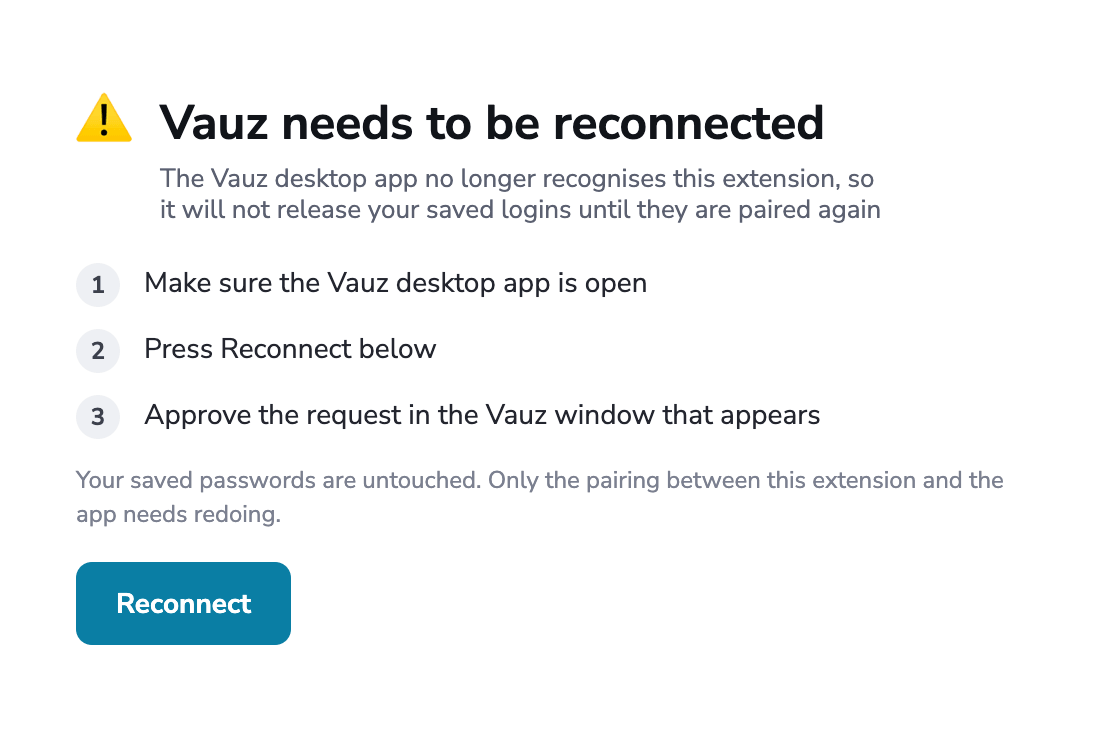
This message means the Vauz desktop app no longer recognises your browser extension. The app itself is running fine — the two are simply no longer paired, so it will not release your saved logins until you pair them again
Your saved passwords are not affected. Nothing has been lost or changed in your vault. Only the pairing between the extension and the app needs redoing
How You Will See It
Vauz reports this in three places, so you are not relying on any one of them
-
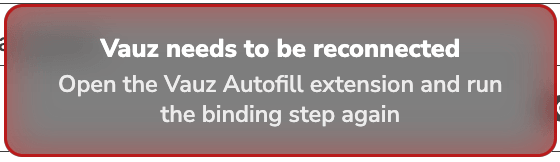
On the page — the credentials dropdown turns red and reads Vauz needs to be reconnected
-
On the toolbar — a red
!badge appears on the Vauz Autofill icon and stays there until the pairing is fixed
-
A desktop notification — one notification, once per episode
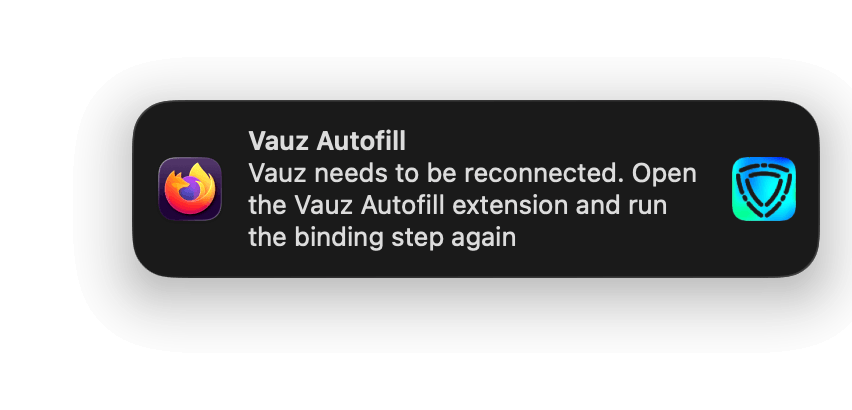
If your system is in Focus mode (macOS) or Do Not Disturb (Windows), the desktop notification is suppressed by the operating system. The toolbar badge and the in-page message still appear
Why It Happens
The most common causes are
- You updated Vauz from an older version. Pairings made by earlier versions may not be carried forward, so each extension may need to be paired again once after updating
- Vauz was reinstalled, or its data was reset
- The extension was reset from its own troubleshooting screen
How to Fix It
Make sure the Vauz desktop app is open
The app must be running to accept a new pairing
Open the Vauz Autofill extension
Click the Vauz icon in your browser toolbar. It shows the reconnect screen rather than the usual settings
Press Reconnect
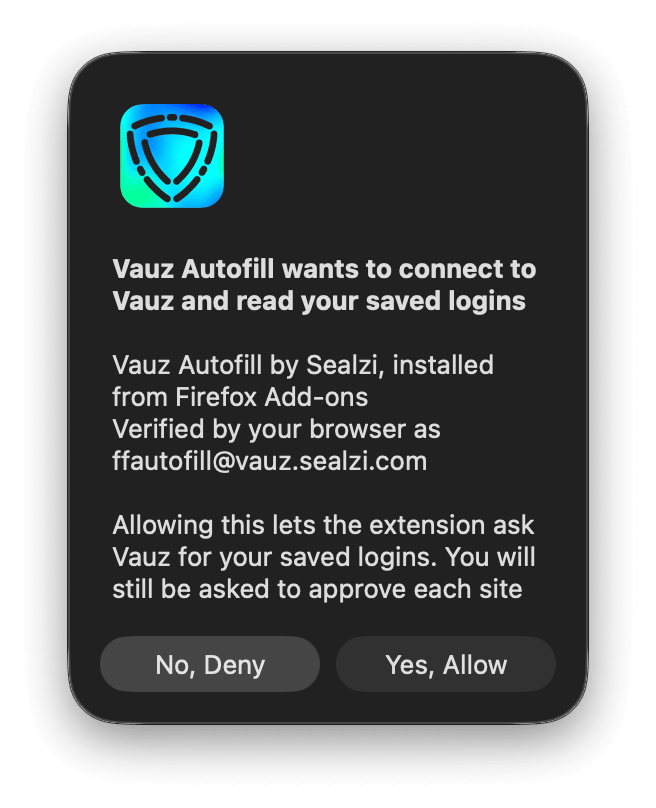
Approve the request in the Vauz window that appears
Vauz will ask you to confirm that this extension may be registered. Approve it to complete the pairing
Autofill works again immediately afterwards, the toolbar badge clears, and the extension popup returns to its normal settings view
Why Vauz Does Not Reconnect Automatically
Pairing grants an extension access to your saved logins. That is not something Vauz will do on your behalf in response to an error, and not something you should get used to approving without asking why
So reconnecting is always something you start deliberately, from the extension
If Reconnecting Does Not Work
Confirm the Vauz app is actually running, not just installed
See Extension cannot connect to main Vauz app
Reset the extension and register it from scratch
See Vauz Autofill Extension troubleshooting
Restart your browser and try once more
A Different Message: "Vauz is not connected"
If the in-page dropdown says Vauz is not connected rather than needs to be reconnected, the extension has not been paired with the app yet. Follow How to Register the Vauz Autofill Browser Extension instead
Related Articles
- How to Register the Vauz Autofill Browser Extension
- Extension cannot connect to main Vauz app
- Vauz Autofill Extension troubleshooting
If the message keeps returning after a successful reconnect, please contact Vauz support with your browser version, operating system, and when the message appears