Understanding the "Extension Not Functional" Warning
What is the "Extension Not Functional" Warning?
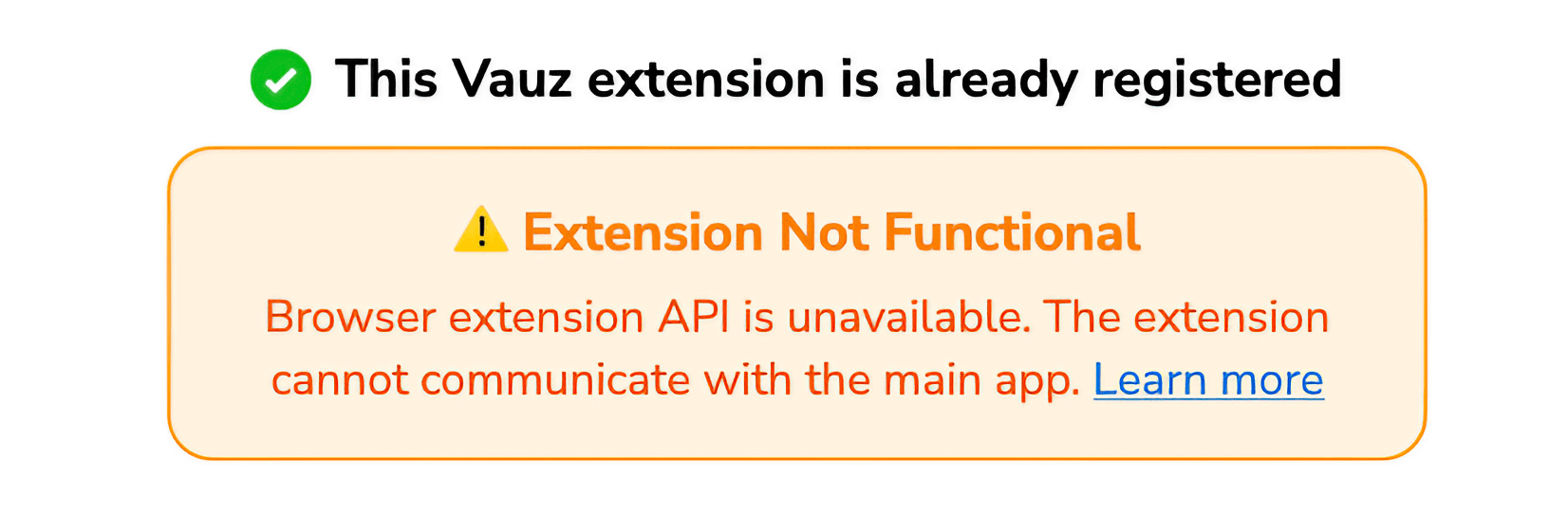
The "Extension Not Functional" warning appears when the Vauz Autofill extension detects that the browser's extension runtime API is unavailable. This warning indicates that the extension cannot communicate with the browser's extension system, making it impossible to request or autofill credentials
Why Does This Warning Appear?
Browser Extension Runtime API
The Vauz Autofill extension relies on the browser's extension runtime API to function:
- Content Scripts: Run on web pages and detect login forms
- Background Scripts: Handle communication with the desktop app and manage credentials
- Runtime Messaging: Allows content scripts to communicate with background scripts
The warning appears when the browser API is not available.
Common Causes
1. Extension Context Restrictions
- Incognito/Private browsing mode with extension disabled
- Extension permissions revoked by user or policy
- Browser security policies blocking extension APIs
2. Browser Compatibility Issues
- Incompatible browser version or build
- Extension API disabled in browser configuration
- Browser in restricted mode (kiosk, enterprise policies)
3. Extension State Issues
- Extension temporarily disabled by user
- Extension corrupted during update or installation
- Browser restart required after extension changes
4. Content Script Execution Context
- Cross-origin restrictions preventing API access
- Page security policies blocking extension scripts
Vauz does not run inside embedded frames at all, so a form in one is never autofilled — that is a deliberate limitation rather than this error. See why information is not autofilled.
Impact on Functionality
What Stops Working
When the runtime API is unavailable:
- Credential requests fail silently - no passwords can be requested
- Logo injection disabled - no Vauz icons appear in forms
- Autofill completely blocked - cannot fill any login forms
- Extension appears "dead" to the user
What Still Works
- Extension popup accessible - can access settings and troubleshooting
- Extension icon visible - appears in browser toolbar
- Desktop app connection - background script may still communicate with Vauz app
How to Fix the Warning
Solution 1: Check Incognito/Private Mode
Private browsing modes often restrict extensions:
Exit private/incognito mode
Reopen the website in normal browsing mode
Trigger Vauz Autofill in normal browsing mode
Check if the warning disappears
Solution 2: Verify Extension Permissions
Ensure the extension has required permissions:
Solution 3: Restart Browser and Extension
Simple restart often resolves API issues:
Close all browser windows (Quit the browser)
Wait 10 seconds for complete shutdown
Restart your browser (make sure Vauz Autofill extension is enabled)
Test the extension on a login page
Solution 4: Reinstall Extension
If the extension is corrupted:
Extensive Troubleshooting
Verify Extension State
Check if extension is properly loaded:
Test in Different Contexts
Isolate the issue:
Test on different websites - may be site-specific
Test in different browser tabs - may be tab-specific
Test in different browser profiles - may be profile-specific
Test in different browsers - may be browser-specific
Enterprise/Business Environments
In managed environments:
Check with IT administrator - extension may be blocked by policy
Verify Browser is not in kiosk mode
Check group policies for extension restrictions
Support Information
When to Contact Support
Contact Vauz support when:
- Warning persists after trying all solutions
- Issue occurs on all websites
- Extension was working before and suddenly stopped
- Browser console shows repeated API errors
Information to Provide
When reporting issues, include:
- Browser name, version and operating system
- Whether in private/incognito mode
- Steps to reproduce the issue
- Any error messages from browser console
- Extension version and installation date