Vauz Autofill Extension troubleshooting
How to Reset Vauz Extension for a Fresh Start
If you're experiencing any issues with the Vauz extension such as installation problems, registration failures, connection issues, performance slowdowns, or speed problems, resetting the extension can often resolve these issues by clearing all saved data and giving the extension a clean start.
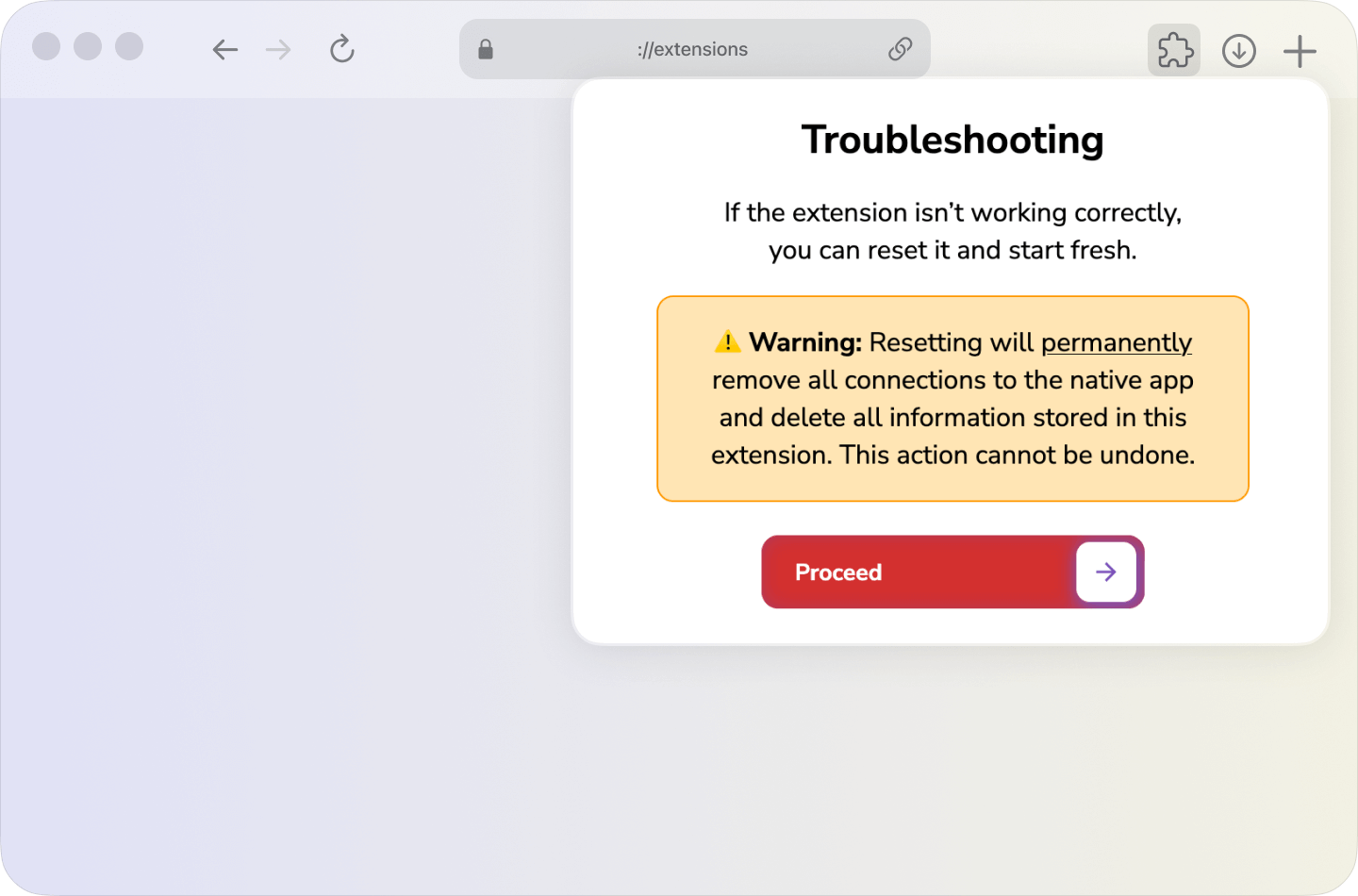
Important Warning: Resetting the extension will permanently remove all connections to the main Vauz app and delete all information stored in the extension. This action cannot be undone. You will need to re-register the extension with the main Vauz app after resetting.
Try this before you reset
Resetting is not the first thing to reach for. Most of what sends people here is fixed by opening the Vauz desktop app — a good share of it without anything else being needed
Autofill does not go through the Vauz window. Your browser starts a small autofill helper when it first needs one, and that helper is what answers, which is why autofill can fail while Vauz looks perfectly fine — and why opening Vauz can fix it even though Vauz appeared to be working
Open Vauz, and leave it open for a moment
Opening the app re-registers the autofill helper with your browser. That alone clears most setup problems. You can close it again afterwards if you prefer
If it was already open, quit it completely and start it again
The helper can outlive the app window, so closing the window is not always enough. Follow
Check that nothing is still running
and quit every entry a search for Vauz finds — including the one whose name begins
Vauz Autofill Agent
Trigger autofill again
Click the Vauz mark in the login field, or the field itself, depending on your settings
This is worth trying for "Vauz is not responding", "Vauz did not respond", an extension stuck on "Loading credentials…", and most of the screens in When binding the extension does not work. None of them need a reset, and a reset means pairing again from scratch
If the message is "Vauz needs to be reconnected", do not reset either — that one has its own, shorter fix. See Understanding the "Vauz needs to be reconnected" Message
Steps to Reset Vauz Extension
Step 1: Open the Extension Popup
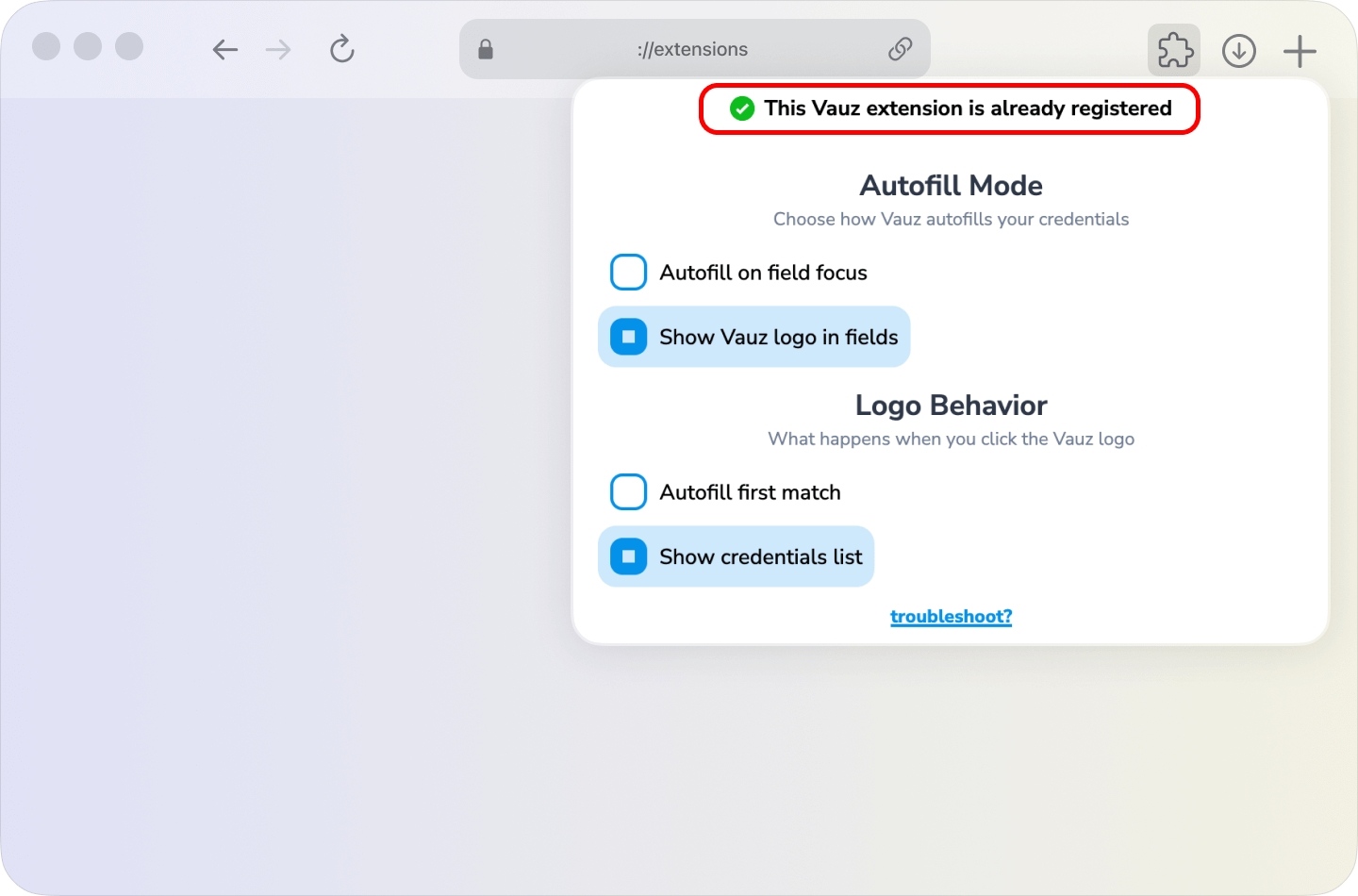
- Click on the Vauz extension icon in your browser toolbar (usually in the top-right corner)
- The extension popup should open showing your current status
Step 2: Access Troubleshooting
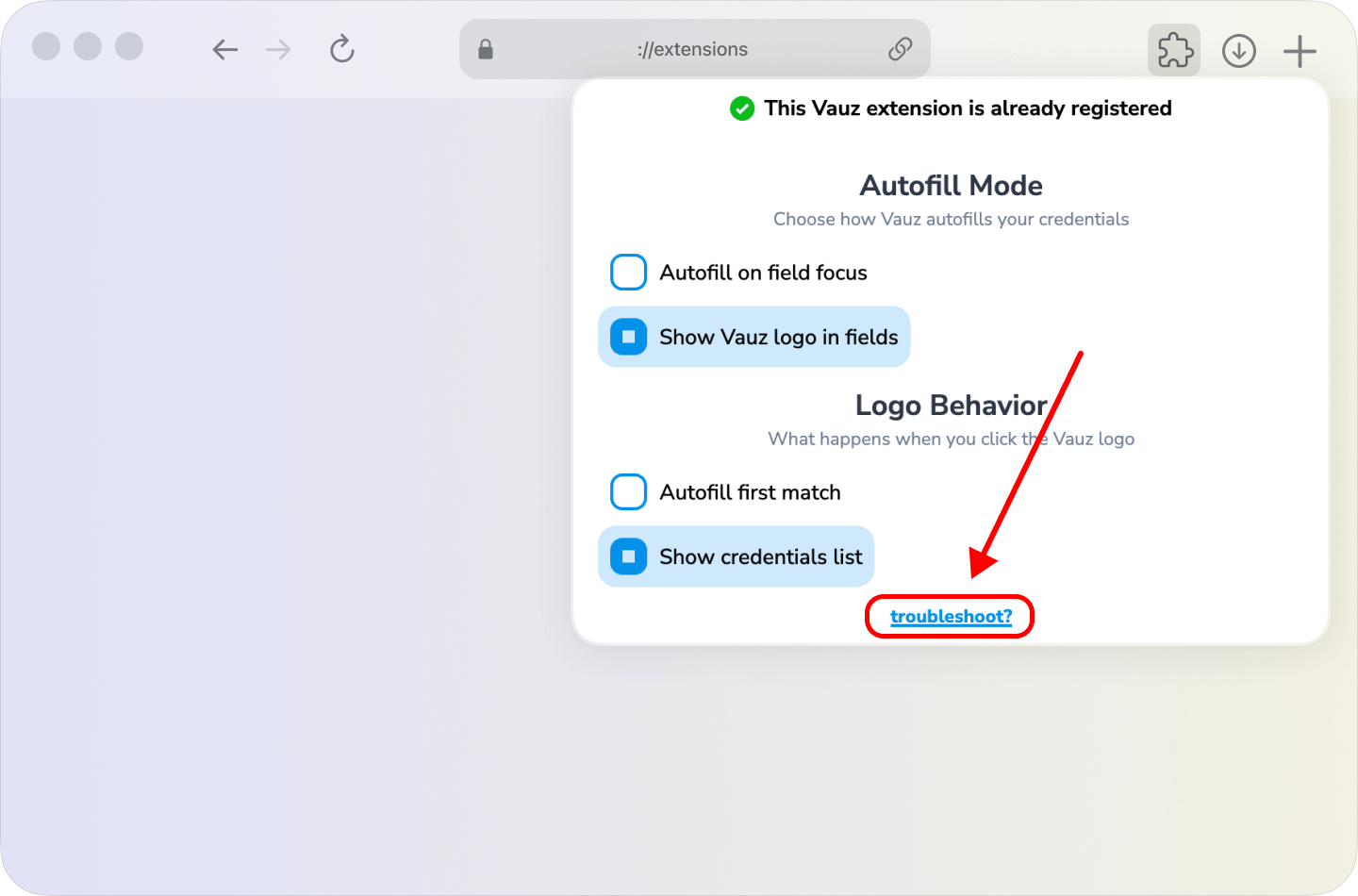
- Look for a
troubleshoot?button at the bottom of the popup - Click on the
troubleshoot?button
Step 3: Read the Warning
The troubleshooting page will display a warning about what will be removed. Take a moment to read this carefully.
Step 4: Proceed with Reset
- Click the
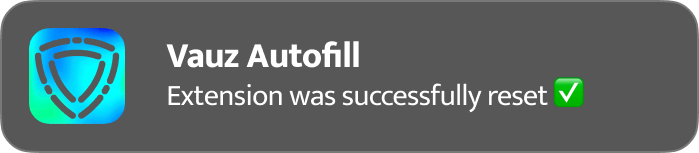
Proceedbutton to confirm the reset - A notification will appear confirming the extension was successfully reset
Step 5: Re-register the Extension
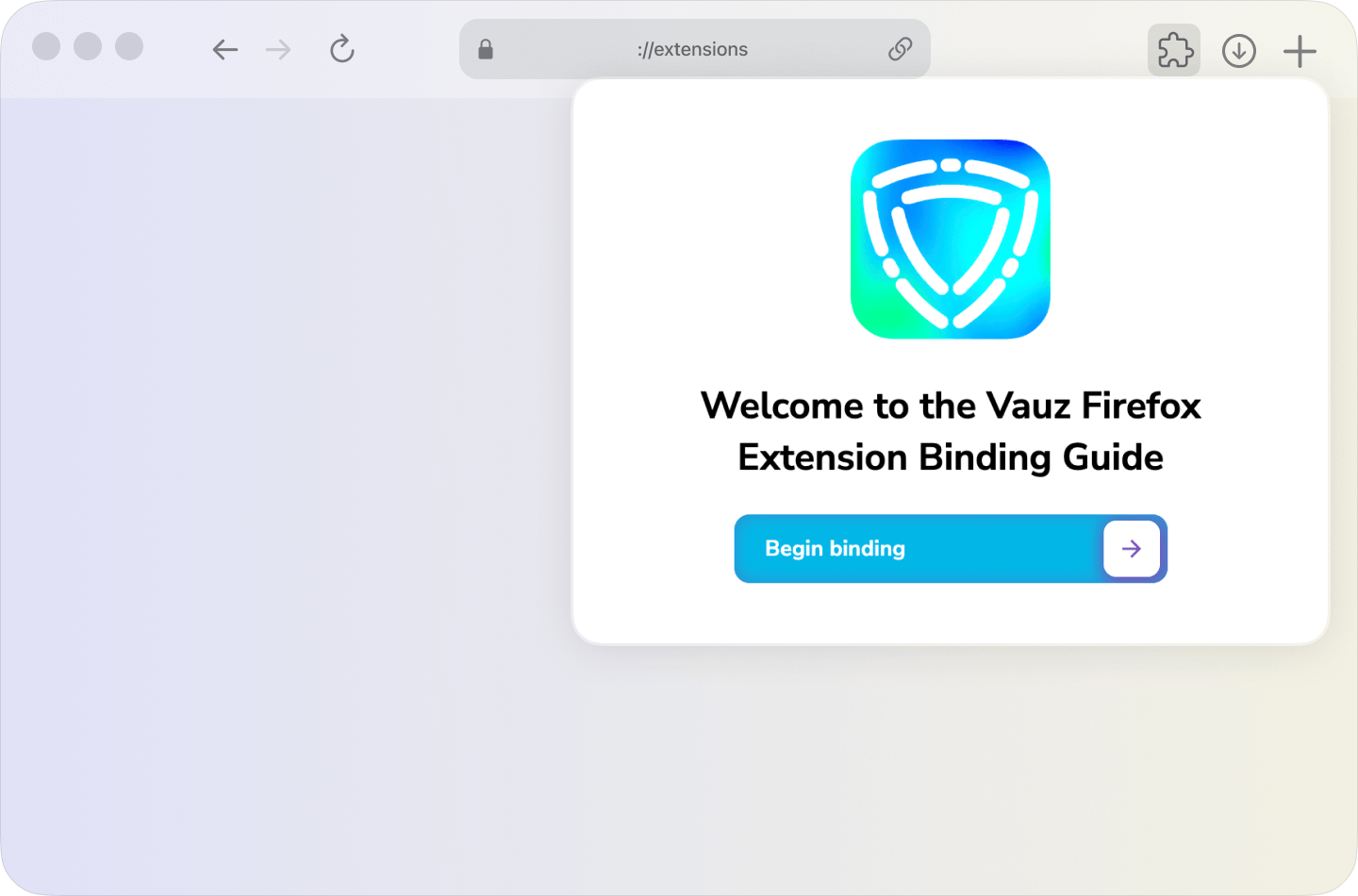
After resetting, you'll be taken back to the binding guide:
- Follow the on-screen instructions to re-register the extension
- Approve the connection when prompted
What Gets Reset
When you reset the Vauz extension, everything it has stored is permanently removed:
- The pairing with the Vauz desktop app, and the keys that protected it
- Your extension settings — autofill mode, logo behaviour, and the authentication options
- Whatever it had recorded about a previous failure
Your vault is not touched. The extension never holds your logins; it asks the app for them one at a time, so there is nothing of yours in it to lose
What Goes Away With It
The reset also clears everything the extension was showing you about the old pairing, so you are not left being warned about something that no longer exists:
- The red
!badge on the toolbar icon, and any Vauz needs to be reconnected or Vauz did not respond notification still on screen - The Vauz marks on login fields in tabs you already had open, and any address warning above them. The fields go back to exactly how the site drew them — no reload needed
Pairing again brings the marks back to those same tabs, without a reload
When to Use This Reset
Reach for it once opening Vauz has not helped. It is the right answer for:
- A pairing that will not complete however many times you press Try again
- Settings that will not save or apply
- An extension that has been installed across a reinstall of Vauz, or moved between machines
- General instability with no clearer explanation
It is not the answer for Vauz needs to be reconnected, Vauz is not responding, or a single site whose login field shows no Vauz mark. The first two are covered above, and the third is usually the field itself rather than anything wrong with the extension
After Resetting
After completing the reset:
- The extension will return to its initial setup state
- You'll need to go through the registration process again
- All your settings will be restored to defaults
- You'll need to approve the connection in the main Vauz app
If the binding itself fails rather than completing, the extension tells you why on screen — see When binding the extension does not work
If problems persist after resetting, please contact Vauz support with details about the issue you're experiencing.
After Updating or Reinstalling Vauz
Autofill runs through a small helper process that your browser starts when it first needs it, and keeps for as long as your browser stays open. A helper started before an update carries on afterwards, still running the version it began with
Vauz handles this on its own: once the app it came from has been replaced, the helper finishes whatever request it is working on and steps aside, so your next autofill starts a fresh one from the new version. Reloading the extension does not do this, because the helper belongs to the browser rather than to the extension. If you would rather not wait for your next autofill, quit and reopen your browser