Understanding the "Release saved logins?" Prompt
When the Vauz Autofill extension asks the Vauz desktop app for a saved login, the app now asks you first. Nothing is sent to your browser until you approve it
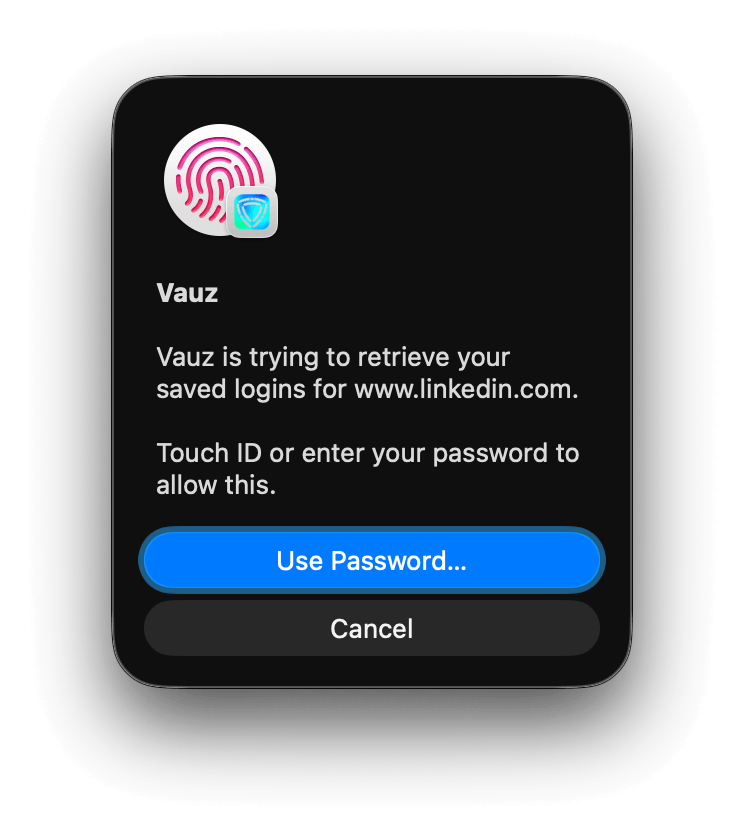
Releasing a saved login is a decision you make each time, rather than something that happens quietly in the background
What You Will See
Vauz asks on every platform it runs on. Which prompt appears depends on what your computer supports, and on your extension settings
Read the Website Address
The address shown in the black box is the site the login will be sent to
Only approve if you are signing in to that exact site right now. If a prompt appears when you were not trying to sign in anywhere, press Deny
Who Is Asking
Below the address, Vauz states which extension made the request
- A recognised extension is named plainly, for example Vauz Autofill by Sealzi, installed from Firefox Add-ons
- An unrecognised extension is labelled as such. Any name it supplies for itself is shown in quotes and marked as unverified
When Vauz states an extension's name as fact, it has confirmed it. When it cannot, it says so rather than repeating a name it has not checked
If you see an unrecognised extension asking for your logins and you did not install a second password extension, press Deny and review your installed extensions
How Often You Are Asked
By default, approving once covers that website for two minutes. Filling several fields on the same sign-in page, or correcting a mistyped password, will not prompt you repeatedly
After two minutes, or on a different website, you are asked again
You can turn this grace period off entirely. In the extension's settings, enable Prompt for authentication on every autofill and Vauz will ask each time. See How to Use the Vauz Autofill Browser Extension
If You Enter the Wrong V-Key
The field turns red and shakes, and you can try again. Repeated failures show a Too many tries countdown, and you will need to wait before trying again
Wrong V-Key attempts count towards the same lockout wherever you make them, so failures here and on the Vauz lock screen add up together
The Prompt Closes on Its Own
If the prompt is left unanswered for about two minutes, it closes and the request is refused
This is not an error — a request that old is no longer valid, so answering it would not fill anything. Trigger autofill again to get a fresh prompt
Common Questions
The prompt appeared but I was not signing in to anything
Press Deny. A prompt should only ever follow something you did in the browser — clicking a login field, or clicking the Vauz logo in one
Why does it ask again after I just approved?
Either more than two minutes have passed, you moved to a different website, or you have Prompt for authentication on every autofill enabled in the extension settings
My browser lost focus after the prompt closed
The prompt comes to the front so you can see it, and returns focus to your browser when it closes. If focus does not return, please contact Vauz support with your operating system version
Can I turn these prompts off?
No. The prompt is what keeps a browser extension from reading your vault without your knowledge, so there is no setting to remove it. You can only make it stricter, not looser
Related Articles
- How to Use the Vauz Autofill Browser Extension
- How to Register the Vauz Autofill Browser Extension
- Vauz Autofill Extension troubleshooting
If a prompt behaves unexpectedly, or names an extension you do not recognise, please contact Vauz support with details of what you saw