Understanding the "Could Not Be Decrypted" Message
What is this message?
When Vauz opens your vault, it checks every saved entry before showing it. If an entry does not pass that check, Vauz will not display it, and you will see a message like this:
1 saved password could not be decrypted and is not shown. Nothing was deleted
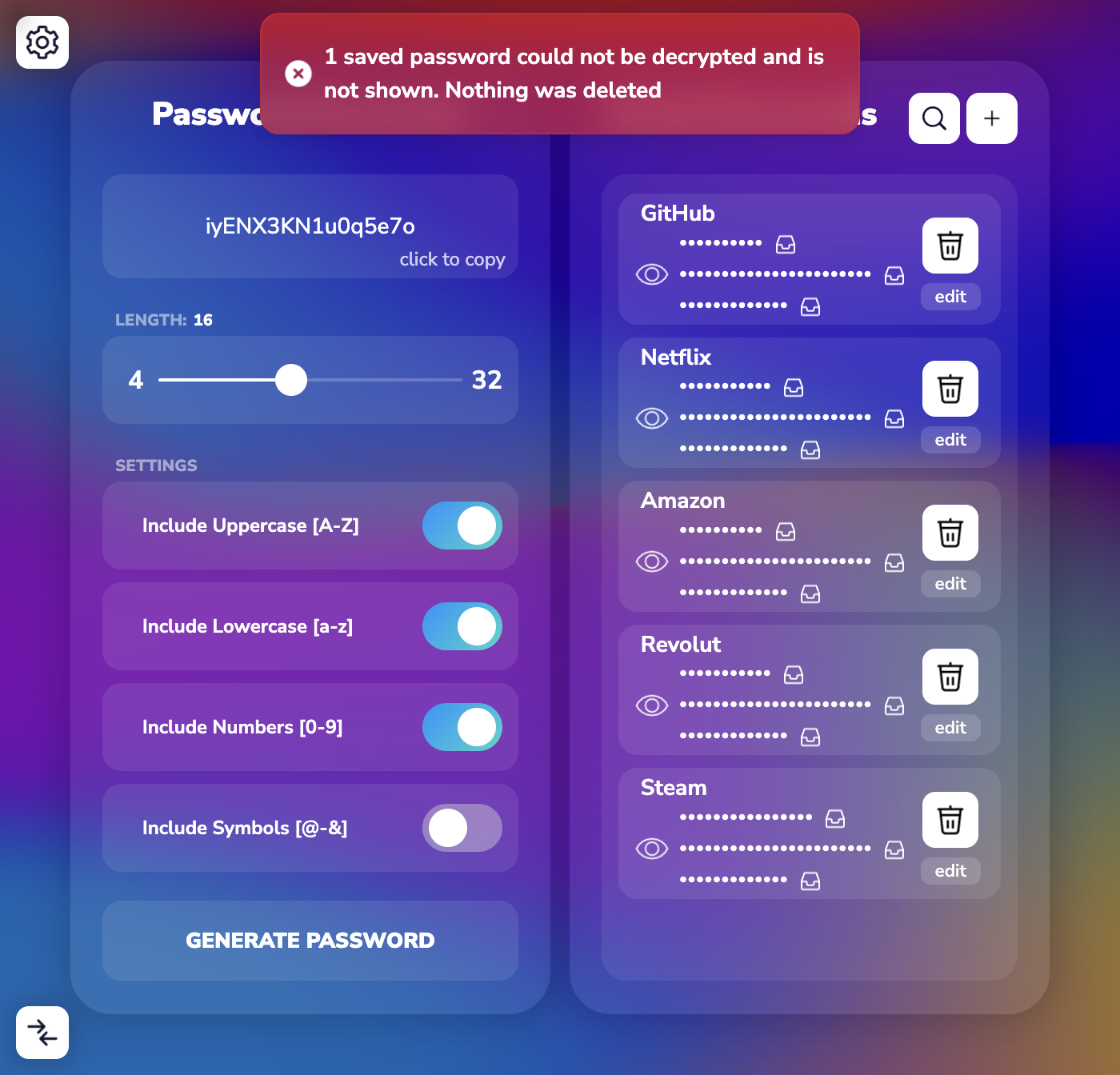
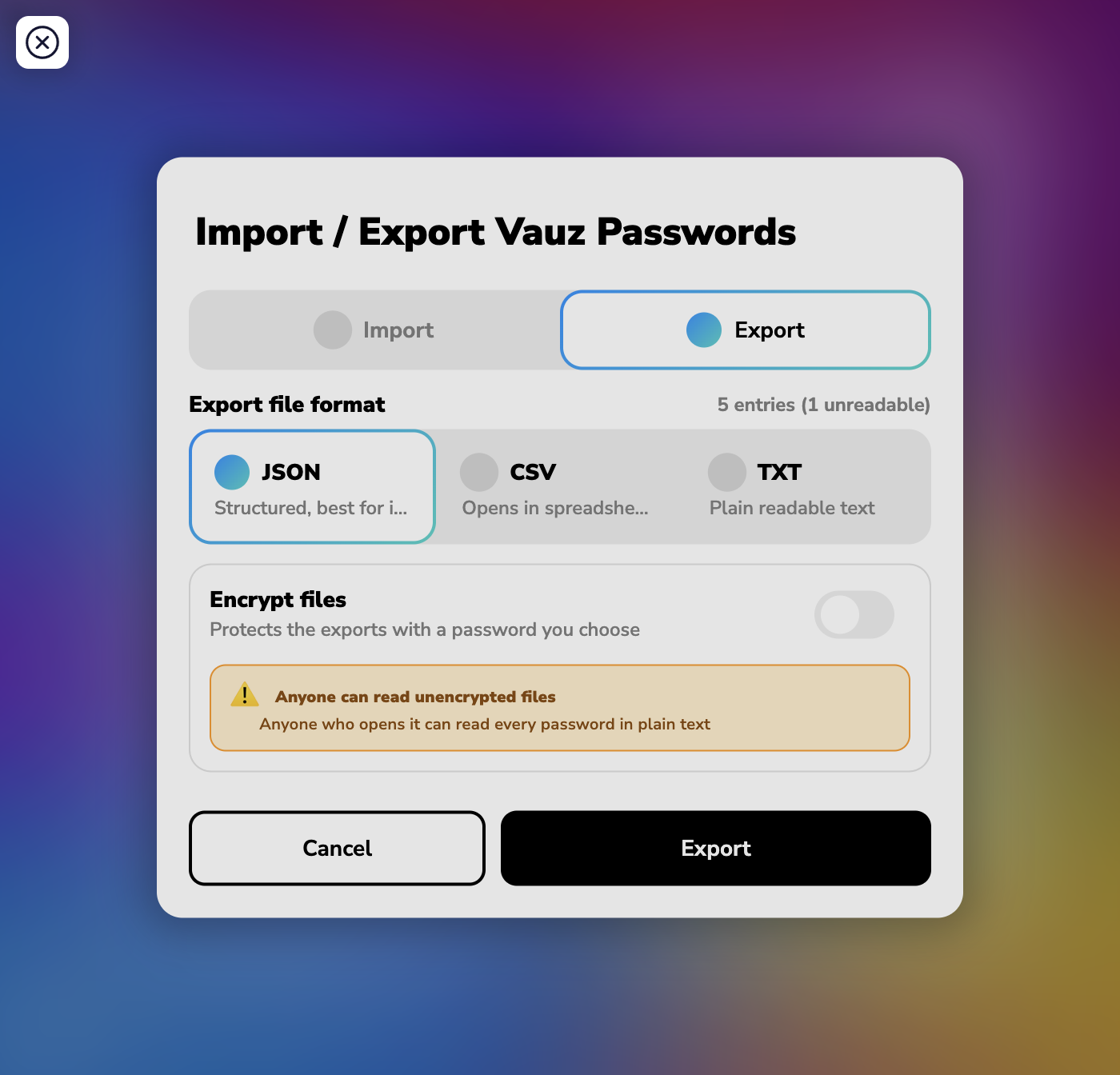
You may also see the same thing reflected in the Import / Export panel, where the entry count is followed by a note:
5 entries (1 unreadable)
What this message does and does not mean
What it means
- Vauz found at least one saved entry it could not confirm was intact, so it did not show it
- The rest of your vault opened normally and is fully usable
What it does not mean
Nothing has been deleted. The affected entries are still stored exactly as they were, and Vauz has not modified or removed them
- It does not mean your other passwords are damaged
- It does not mean someone has read your passwords. Vauz refusing to display an entry it cannot verify is the protection working as intended, not a sign that data leaked
- It does not mean you need to start a new vault
Why does this happen?
An entry becomes unreadable when the stored vault no longer matches what Vauz saved. The most common reasons are:
Reason 1: Something other than Vauz changed the vault
Disk cleanup utilities, antivirus quarantine, "optimiser" apps, or manually editing Vauz's stored data can alter or truncate what Vauz wrote. Vauz will not display an entry it cannot confirm is unchanged
Reason 2: An interrupted save
A forced quit, a power loss, a system crash, or a disk that ran out of space while Vauz was saving can leave an entry incomplete
Reason 3: A partial or conflicted copy was restored
File sync tools (cloud drives, folder mirroring, backup agents) can copy Vauz's data while it is being written, or resolve a "conflicted copy" by merging files. Restoring one of those copies can leave entries that no longer match
Reason 4: The vault came from another device or user account
Saved entries are tied to the device and the user account they were created on. Copying Vauz's stored data from another computer, another user profile, or a restored system image will not make those entries readable
Reason 5: Failing storage
A drive developing bad sectors can silently corrupt stored data
What to do
Step 1: Note what the message says
Write down how many entries are affected. You will need this if you contact support, and it lets you confirm later whether the number changed
Step 2: Update Vauz to the latest version
Newer versions of Vauz can read some entries that earlier versions could not. This is the first thing to try. Download the latest version from vauz.sealzi.com/download (opens in a new tab)
Step 3: Restart Vauz and check again
Fully quit Vauz and reopen it. Closing the window is not always enough. If the count changes or the message disappears, the earlier read was affected by something temporary
Step 4: Protect the backups you already have
If you have an export from before the problem appeared, keep it. Do not overwrite it and do not delete it
Step 5: Export what is currently readable
Use Import / Export to export your entries to a new file, so you have a copy of everything Vauz can currently read. Vauz will warn you that this file is not a complete backup, which is expected here
Step 6: Contact support
The affected entries may be recoverable. Get in touch before making bulk changes to your vault
What to avoid
Do not delete and re-create your vault to clear the message. The affected entries are still stored, and starting over removes any chance of recovering them
- Do not replace Vauz's stored data with a copy from another device or user account
- Do not let disk cleanup or antivirus tools act on Vauz's stored data
- Do not keep Vauz's stored data inside a folder that a cloud sync client actively syncs while Vauz is running
- Do not delete your last good export until the affected entries are resolved
Preventing it
- Close Vauz normally instead of force-quitting it
- Export a backup regularly, and keep more than one, so a partial export never becomes your only copy
- Keep enough free disk space for the app to save reliably
- Keep Vauz updated
When to contact support
Please contact Vauz support and include:
- How many entries the message reports as unreadable
- Your Vauz version and operating system
- Whether the number changes after restarting Vauz
- Anything that happened before it appeared: a crash, a forced quit, a full disk, an antivirus alert, a restore from backup, or a new sync tool
- Whether Vauz's stored data was ever copied from another computer or user account
Never send us your exported password file, your V-Key, or any of your passwords. Support will never ask you for them