How to Fix Vauz Being Zoomed In or Zoomed Out
You opened Vauz and it looks wrong. Everything is enormous and half the buttons have wandered off the edge of the window, or everything has shrunk to the size of an ant colony. You did not change a setting, you closed and reopened the app and it made no difference, and now you are wondering what you have broken
Nothing. Vauz is zoomed, and one keypress puts it back
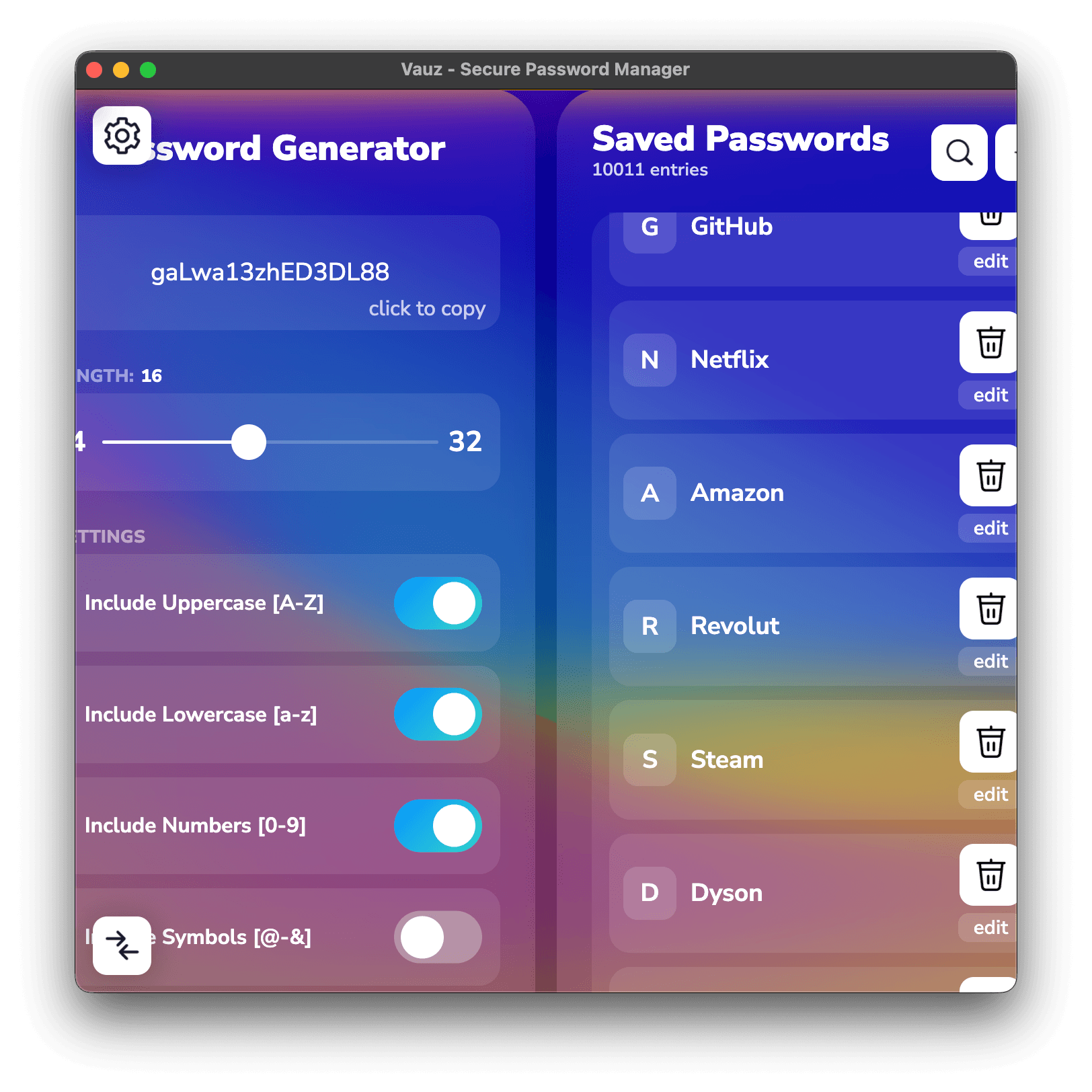
Fast Tip: press ⌘ + 0 on Mac, or Ctrl + 0 on Windows and Linux. That is the whole fix
The one-second fix
Step 1: Click once on the Vauz window
This makes sure your keyboard is talking to Vauz and not to whatever was in front of it
Step 2: Press the reset shortcut
⌘ + 0 on Mac, or Ctrl + 0 on Windows and Linux. That is the number zero, not the letter O
Vauz snaps back to its default size straight away
No luck with the keyboard?
The menu does exactly the same job
Zoomed out so far you cannot read the menu to find your way there? Press the shortcut anyway. It does not care how small the window has become, and you do not need to be able to see anything for it to work
Why it happened, and why restarting did not help
Vauz has the standard zoom shortcuts every desktop app has, and they sit right next to keys you press all day:
| Shortcut | What it does |
|---|---|
⌘ + + or Ctrl + + | Zoom in |
⌘ + - or Ctrl + - | Zoom out |
⌘ + 0 or Ctrl + 0 | Default size |
A stray ⌘ + - while reaching for something else, a cat on the keyboard, a hand resting somewhere it should not, a shortcut you meant for a different app — any of these will do it
The part that puzzles people is what comes next. Vauz remembers the zoom level, deliberately: somebody who has zoomed in because they need larger text should not have to set it again every single morning. The same memory is what makes an accidental keypress feel permanent. Quitting Vauz will not clear it, restarting your computer will not clear it, and reinstalling would be a spectacularly heavy way to undo a keystroke
⌘ + 0 or Ctrl + 0 clears it. That is what it is for
Make sure it really is zoom
Two other things get mistaken for zoom, and neither is fixed by pressing 0
The window is the wrong size, but the text looks normal
If the text and buttons are their usual size and there is simply too much or too little window around them, that is the window, not the zoom. Drag an edge to resize it, or maximise it with the green button on macOS, the maximise button on Windows, or a double-click on the title bar
Vauz never goes smaller than 700 × 700 pixels, so if the window refuses to shrink any further, that is the floor and not a fault
Vauz opens filling the whole screen every time
That is a setting, and it is doing what you asked. Open Settings, stay on the Personalisation tab, find Open app in maximized view on startup, untick the Full Screen checkbox, and click Save
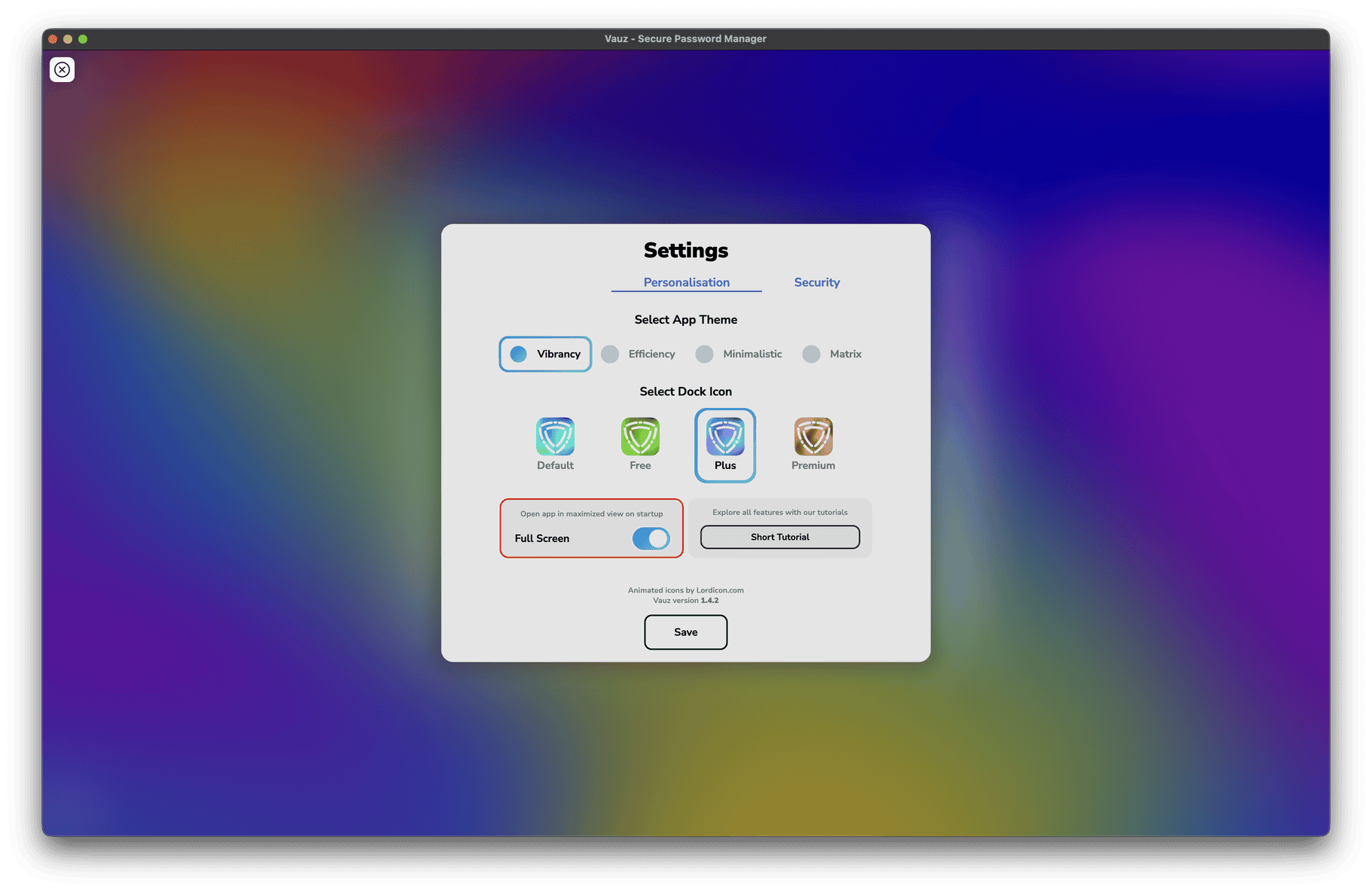
If it is the opposite that bothers you, tick the same box and Vauz will open large from now on
Vauz has taken over the entire screen with no title bar
That is true full screen rather than zoom, and it is easy to trigger by accident
If it's still not right
Step 1: Press the reset shortcut once more, with Vauz clicked
⌘ + 0 or Ctrl + 0. A click on the window first is the step people skip
Step 2: Use the menu instead of the keyboard
View > Actual Size. On Windows and Linux, tap Alt first to bring the menu bar into view. If the menu works and the shortcut does not, something else on your computer has claimed that key combination
Step 3: Check your system magnifier is not on
A screen magnifier zooms everything, not just Vauz. If your other apps look enlarged too, it is the magnifier. On macOS press Option + ⌘ + 8, and on Windows press Windows + Esc
Step 4: Check your display scaling
If every app on the computer looks too big or too small, it is your display settings rather than Vauz. Look under System Settings > Displays on macOS, or Settings > System > Display on Windows
Step 5: Fully quit Vauz and open it again
This will not clear the zoom on its own, but it does rule out a window that has got itself into an odd state. See How to Fully Quit Vauz
Common questions
Have I lost any passwords?
No. Zoom changes nothing but the size things are drawn at. Every entry in your vault is exactly as it was, and resetting the zoom neither reads nor writes any of your data
Will resetting the zoom log me out?
No. Your vault stays exactly as it was, locked or unlocked
I actually want it bigger, I just went too far
Then you do not want the reset at all. Press ⌘ + - or Ctrl + - once or twice to come back down a step at a time, and keep the size you like. How to Make Vauz Text and Buttons Bigger covers getting this comfortable rather than merely normal
Can I turn the zoom shortcuts off so this stops happening?
Not at the moment. They are the standard shortcuts across desktop apps, and they are how people who need larger text get it. If you keep triggering them by accident, tell us how it tends to happen
It comes back zoomed every time I open Vauz
That is the setting doing its job, remembering whatever it was last left at. Reset it with ⌘ + 0 or Ctrl + 0 while Vauz is open, and that becomes the size it remembers from then on
Related Articles
Still zoomed?
Please contact Vauz support and include:
- Your operating system and version
- Your Vauz version
- Whether Vauz is too large or too small
- Whether your other applications look normal
- What you have already tried, and what happened when you pressed the reset shortcut
- A photo or screenshot of the window, with any passwords covered up
If you send a screenshot, check it first for visible passwords, usernames or your V-Key, and cover anything sensitive. Support will never ask you for them