Why Some Entries Were Skipped During Import
What happened?
When you import a file, Vauz checks every entry in it before saving anything. Entries that do not pass those checks are skipped, and Vauz tells you which ones and why:
2 import issues need attention
Each skipped entry is listed in the panel with its own reason, such as GitHub was skipped because its id already exists (duplicate)
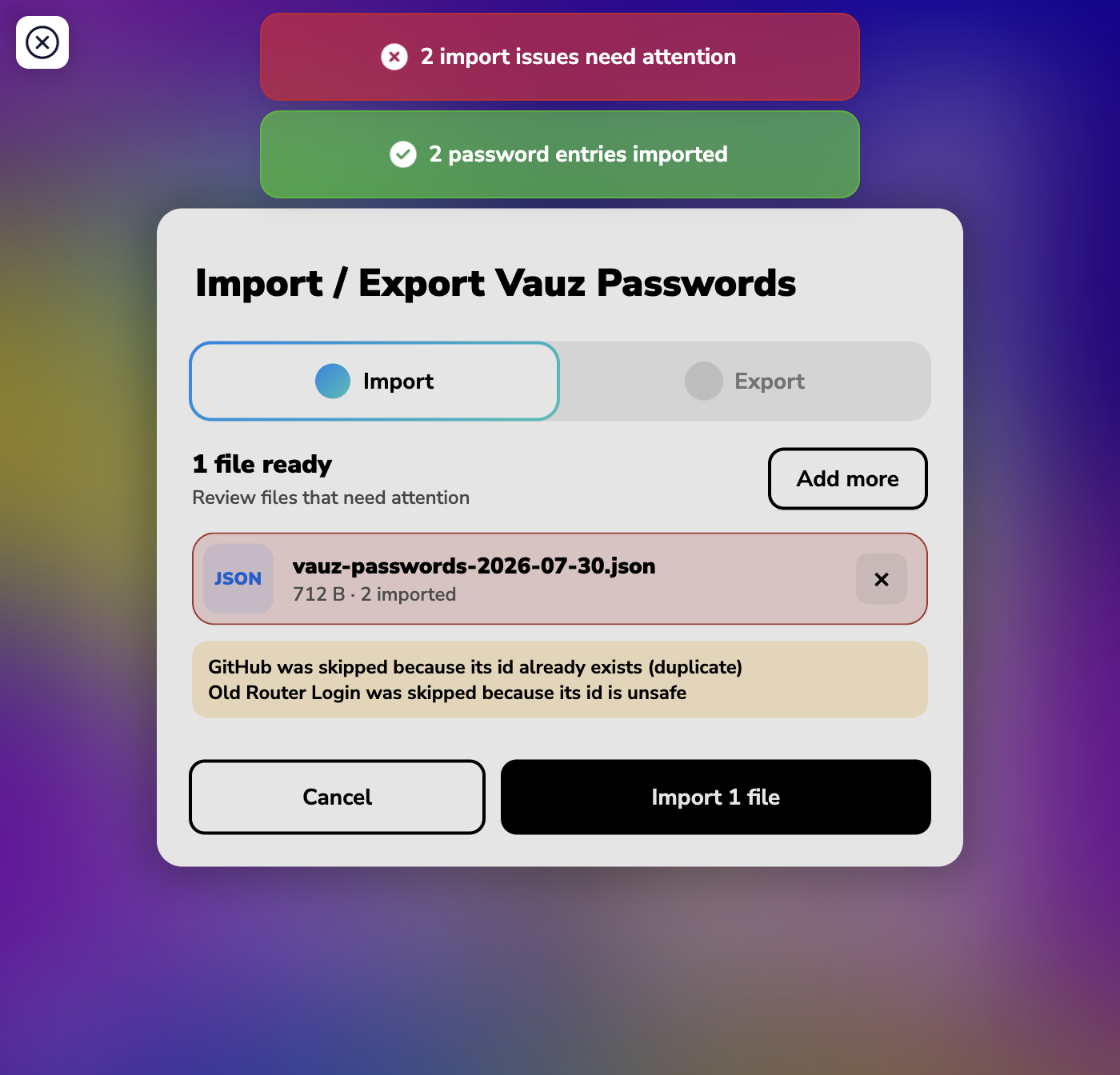
The entries that passed are imported and counted separately, so a partly successful import still tells you exactly what did and did not go in
Skipping is all or nothing per entry. A skipped entry is never half-imported, and the entries that passed are still imported normally
Reasons an entry is skipped
"its id already exists (duplicate)"
An entry with that identifier is already in your vault. Vauz never overwrites an entry you already have during an import, so you cannot lose an existing password to a bad file
What to do: if you meant to update an existing entry, edit it directly in Vauz instead of importing over it. If you genuinely want a second copy, create a new entry from the Vauz UI, so it has a new identity
"is missing an id" or "its id is unsafe"
The entry has no identifier Vauz recognises. This almost always means the file was not produced by Vauz's own export
What to do: add that entry in Vauz yourself, using the + button above your saved passwords. Vauz gives it a proper identity as you save it. If a lot of entries are affected, it is usually quicker to export again from the app you are moving away from, since its own export will include the fields Vauz needs
"it has too many domains"
A single entry can be linked to up to three websites. This one lists more than that
What to do: add the entry in Vauz with the three websites that matter most, then add a second entry for the remaining ones. Use the + button above your saved passwords, and the add-domain button inside the form for the second and third website
"one of its fields is too long"
One of the entry's fields is longer than the matching field Vauz accepts
What to do: add the entry in Vauz using the + button and shorten that field as you type it in. The form stops you at the maximum length, so you can see how much will fit. Notes are the most common culprit
"it is empty"
The entry has no usable content in any of its fields, so there is nothing to save
What to do: nothing, unless you expected content there. If you did, add that entry in Vauz with the + button. An unexpectedly empty entry usually means the file's columns did not line up, which is worth checking before you rely on the rest of it
"it could not be encrypted"
Vauz was unable to store this entry safely, so it declined to save it rather than write something it might not be able to read back later
What to do: add the entry in Vauz with the + button instead. If saving it that way also fails, contact support and mention this message specifically
Messages about the whole file
Some problems stop a file before any of its entries are read:
"Encryption password is incorrect or the file is corrupted"
The password you entered does not match the one used when the file was exported, or the file has been altered since. Check for typos and keyboard layout, and confirm you are using the password from that specific export
"Selected import format does not match the encrypted file"
The format uploaded into Vauz import is not the one the file was exported as. Import the format the file was created with
"file is empty or unreadable" or "Unsupported file type"
Vauz cannot work with this file. Import a file produced by a Vauz export, or a CSV, JSON, or TXT file
"file is too large" or "Import payload is too large"
The file holds more than a single import allows. Export again from the app you are moving away from in smaller batches, and import those one at a time
"Choose at least one file to import"
No file was selected yet
What to do next
Step 1: Read the list of skipped entries
Each line names the entry and the reason it was skipped, so you know exactly which ones still need attention

Step 2: Check which entries were added to your vault
Close the panel and look at your saved passwords. Everything that was not skipped is already there
Step 3: Add the skipped entries in Vauz
Use the + button above your saved passwords to add each one. This is the reliable way to get them in, because Vauz validates each field as you fill it and tells you straight away if something does not fit
Step 4: Delete the import file when you are done
If the file was not encrypted, it contains your passwords as readable text
If you would rather import again than add entries by hand, that is safe to do. Anything already in your vault is reported as a duplicate and skipped, so importing the same file twice will not create second copies
An unencrypted import or export file contains your passwords in plain text. Delete it once you have finished importing, and never leave it in a shared or synced folder
When to contact support
If nothing above fixes your issue, please contact Vauz support and include:
- The exact skip messages you saw, with the entry names removed if you prefer
- Where the file came from: a Vauz export, another password manager, or a file you built yourself
- The file format you chose in the export panel, and whether the file was encrypted
- How many entries the file contained and how many imported successfully
- Your Vauz version and operating system
Never send us your import file, your V-Key, or any of your passwords. Support will never ask you for them