Understanding the "Vauz is not responding" or "Vauz did not respond" Message
This message means the extension asked for your saved logins and never got its answer back — the autofill helper did not reply, or it stopped before it finished. The extension and Vauz are still paired correctly — the helper simply was not there to answer
Autofill does not go through the Vauz window. Your browser starts a small autofill helper when it needs one, and that helper is what replies. It works whether or not the Vauz app is open, which is why this message can appear even when Vauz looks perfectly fine
Your saved passwords are not affected. Nothing has been lost or changed, and nothing needs re-pairing. This is only about a request that went unanswered
How You Will See It
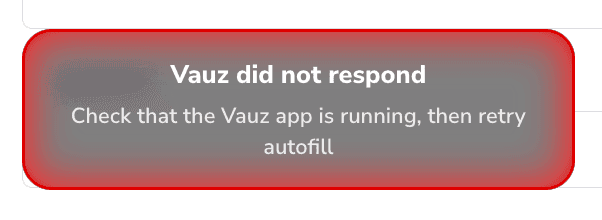
Vauz reports this in four places, so you are not relying on only one of them. The exception is a helper that had already started answering and then stopped: the next attempt starts a fresh one, so nothing appears on the toolbar, as a notification or in the extension window. With Show Vauz logo in fields the dropdown says Vauz did not respond. With Autofill on field focus the field simply stays empty
- On the page — the autofill dropdown reads Vauz did not respond, and suggests trying again
- On the browser's toolbar — a red
!badge appears on the Vauz Autofill icon

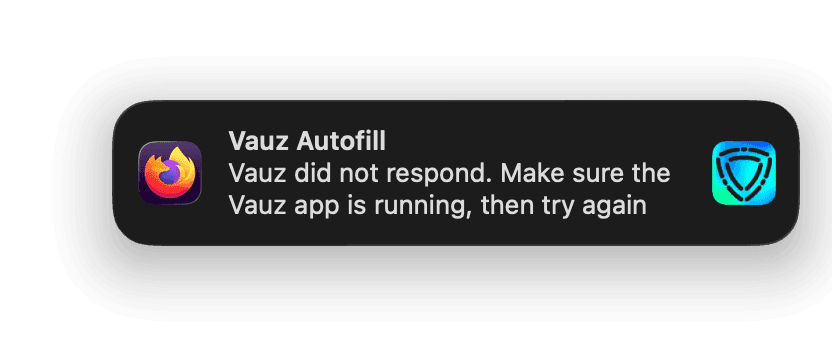
- A desktop notification — Vauz did not respond. Try again, and open Vauz once if it keeps happening
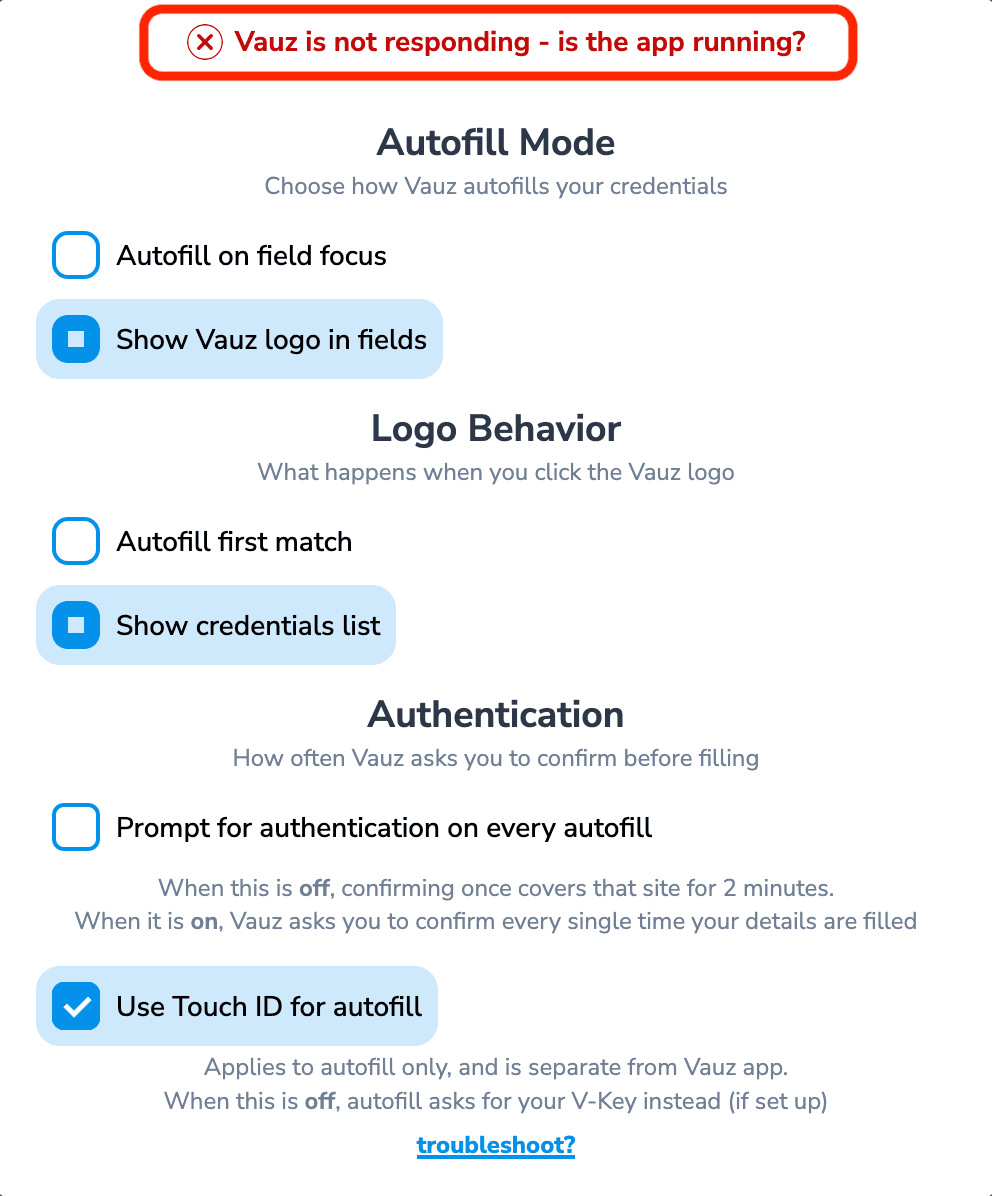
- In the extension's settings window — the bar at the top shows a red cross and Vauz is not responding instead of the usual green tick
If your system is in Focus mode (macOS) or Do Not Disturb (Windows), the desktop notification is suppressed by the operating system. The toolbar badge and the in-page message still appear
What to Do
Open Vauz once
You do not need to keep Vauz open for autofill to work — but opening it re-registers the autofill helper with your browser, which repairs the most common setup problems. Open it once, then close it again if you prefer
Trigger autofill again
Click the Vauz logo in the login field, or the login field itself, depending on your settings. You may reload the page. There is no need to reset or reload the extension
Check that Vauz and the extension are both up to date
If one was updated and the other was not, the two can end up speaking different versions. Update both, then trigger autofill again
If nothing above works, quit every Vauz process
Autofill runs through a helper process that is separate from the Vauz window, and it can outlive the app. Closing or even quitting Vauz does not always end it, which is why the app can look shut down while the extension still gets no answer
Follow Check that nothing is still running for your system. Search for Vauz and quit every entry it finds, not just the app — the helper is listed under a name beginning Vauz Autofill Agent
Then open Vauz again and trigger autofill. The helper starts again on its own the next time it is needed
Why It Happens
Because the helper answers on its own, the causes are about the helper rather than about the Vauz window being open
- Something stopped the autofill helper. Antivirus or endpoint-security software, a sleep or forced restart, or the system reclaiming background processes. The helper is a separate process and can be ended without the Vauz app being affected at all
- The helper could not start. If it fails on launch it never gets as far as answering, and there is nothing to see on screen
- Vauz and the extension are on mismatched versions. One was updated and the other was not, and the two no longer agree on how to talk to each other
- A fault in the extension or in Vauz itself. If it keeps happening on a machine where nothing else explains it, this is the likely answer — please contact us so we can look into it
What This Message Is Not
This is not the same as Vauz needs to be reconnected. Re-pairing the extension will not help here, and there is no reason to do it. If you see needs to be reconnected instead, follow Understanding the "Vauz needs to be reconnected" Message
It is also not the same as an empty result. If Vauz answers and simply has nothing saved for that website, the dropdown tells you that instead — it never reports an empty list when it could not reach the app
After Updating or Reinstalling Vauz
Autofill runs through a small helper process that your browser starts the first time it needs it, and then keeps for as long as your browser stays open
That means a helper started before you updated Vauz keeps serving your browser afterwards, still running the version it started with. After you update or reinstall Vauz, quit and reopen your browser once: the next autofill then starts a fresh helper from the new version
Related Articles
- Understanding the "Vauz needs to be reconnected" Message
- Extension cannot connect to main Vauz app
- How to Fully Quit Vauz
- Vauz Autofill Extension troubleshooting
If the message keeps appearing after all of the above, please contact Vauz support with your browser name, its version, operating system, Vauz version and Vauz Autofill version