How to Make Vauz Text and Buttons Bigger
Vauz opens at a size that suits some eyes and not others. If you find yourself leaning towards the screen, squinting at a password to work out whether that is a 1 or an l, or handing the laptop to someone else to read it out, you are not doing anything wrong and nothing is broken. The text is simply too small for you, and you can make it bigger in about five seconds
Your passwords are yours to read comfortably. Here is how
Fast Tip:
- Bigger:
⌘++on Mac,Ctrl++on Windows and Linux - Smaller:
⌘+-orCtrl+- - Back to normal:
⌘+0orCtrl+0 - Zooming in works best with the window made big first
The three shortcuts
Everything in Vauz scales together: your entry titles, usernames, passwords, buttons, the search box, the lot. It is not a font setting hidden somewhere in a menu, it is one shortcut you press as many times as you like until it looks right
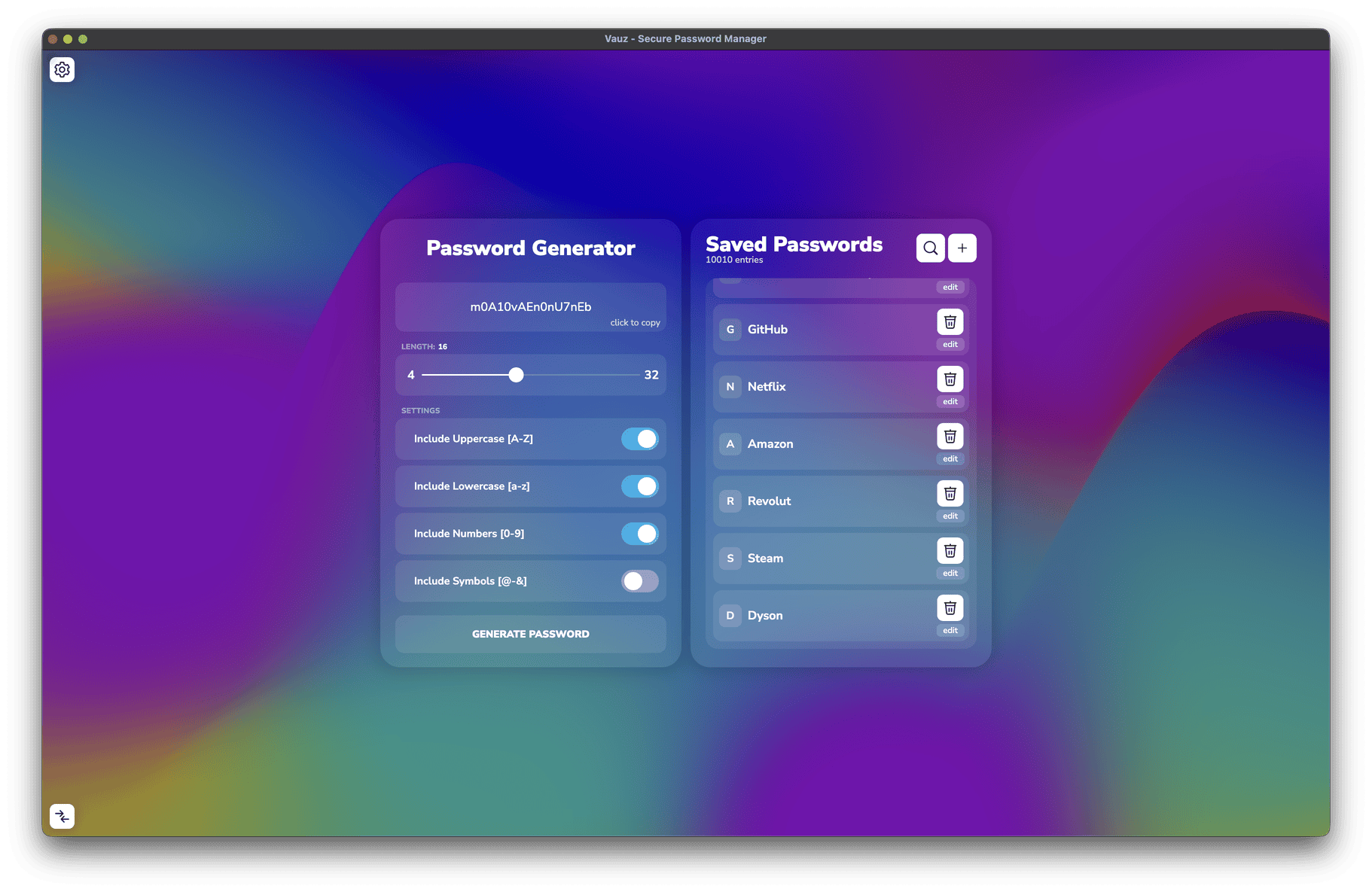
Give the window some room first
This is the part that catches people out, so it is worth a moment
Zooming in makes everything inside Vauz bigger, but it does not make the Vauz window bigger. Vauz opens in a fairly small window by default, so if you start pressing ⌘ + + straight away, the interface grows while the window it lives in stays exactly where it was. Things get cramped, and eventually parts of the layout are pushed out of sight
The fix is simply to make the window big before you zoom in. Then there is somewhere for all that lovely large text to go
Vauz will not let itself be made smaller than 700 × 700 pixels. That floor exists so the interface always has enough room to lay itself out properly, and it is one less way for things to end up unreadable
Make Vauz open big every time
Resizing the window by hand every morning gets old quickly. There is a setting that does it for you
Step 1: Open Settings
Click the settings button in the Vauz window
Step 2: Stay on the Personalisation tab
It is the tab Settings opens on
Step 3: Find Open app in maximized view on startup
Tick the Full Screen checkbox underneath it
Step 4: Click Save
You will see Settings have been successfully updated! and the panel closes
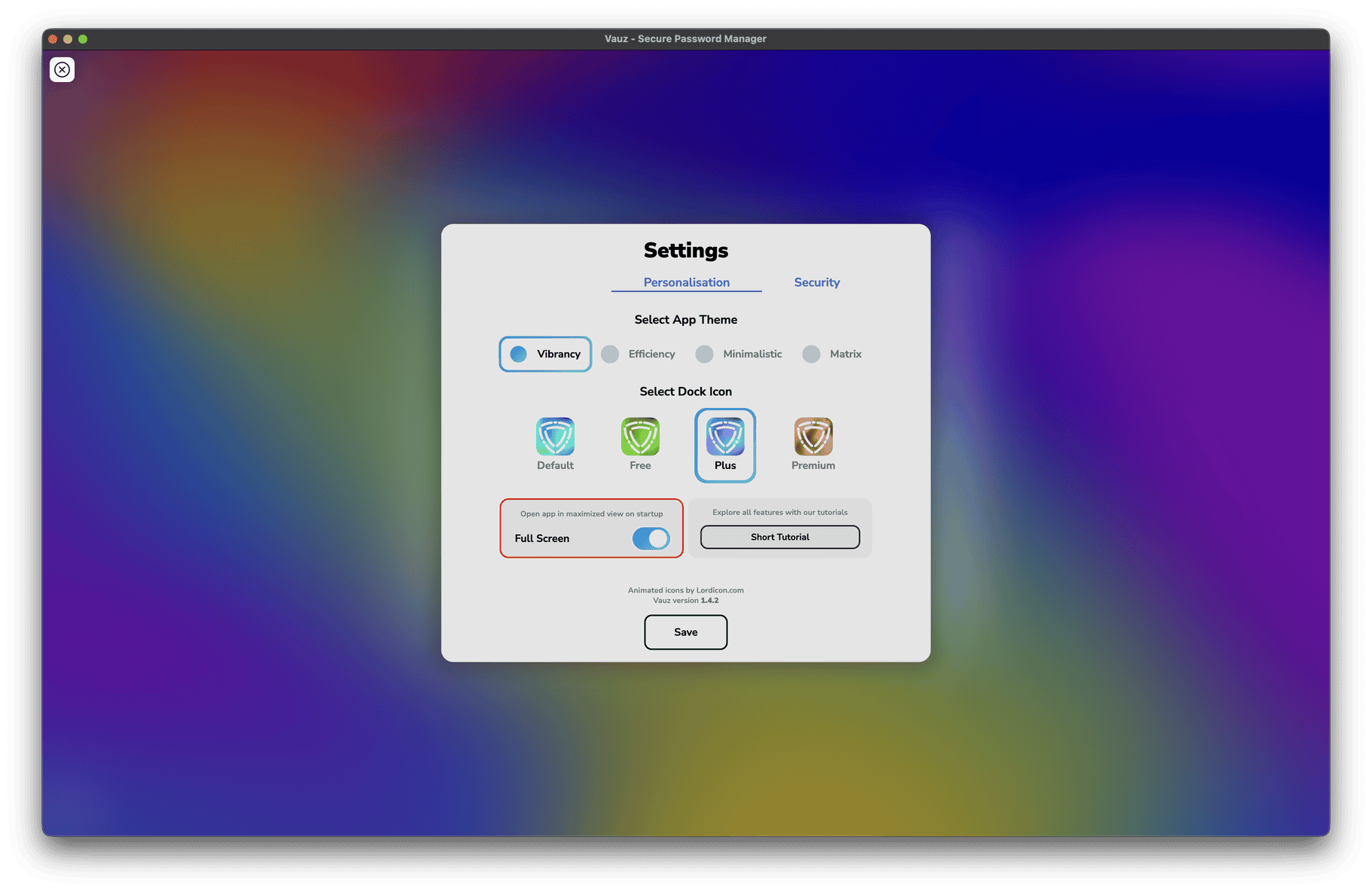
From now on, Vauz opens already filling your screen, with your zoom level already applied. Nothing to press, nothing to drag
The checkbox says Full Screen, but what it actually does is maximise the window: Vauz fills your screen and keeps its normal title bar, rather than taking over the whole display the way true full screen does. For everyday reading, maximised is usually the nicer of the two
Vauz remembers your zoom level
Once you have found a size that works, you are done. Vauz remembers it and reopens at that size, tomorrow and next month
That is exactly what you want when you have set it deliberately. It is also why an accidental keypress can leave the app looking wrong until you undo it, and why closing and reopening Vauz will not put it back on its own. If that ever happens, ⌘ + 0 or Ctrl + 0 is the reset, and there is a whole article on it: How to Fix Vauz Being Zoomed In or Zoomed Out
When the app's own zoom is not enough
Vauz's zoom is generous, but it does have a ceiling. If you need more magnification than it offers, your computer has a magnifier built in that works on Vauz and on everything else
Other settings that make Vauz kinder to read
Zoom is the big one, but a few other settings in Vauz are worth knowing about if reading the screen takes you a little longer
Give yourself more time to read a password
If you have turned on auto-hide, a revealed password disappears again after a set time. The default is short, and short is not much use if you are reading a long password character by character and typing it somewhere else
Open Settings > Security and look at Auto-hide passwords after a certain time
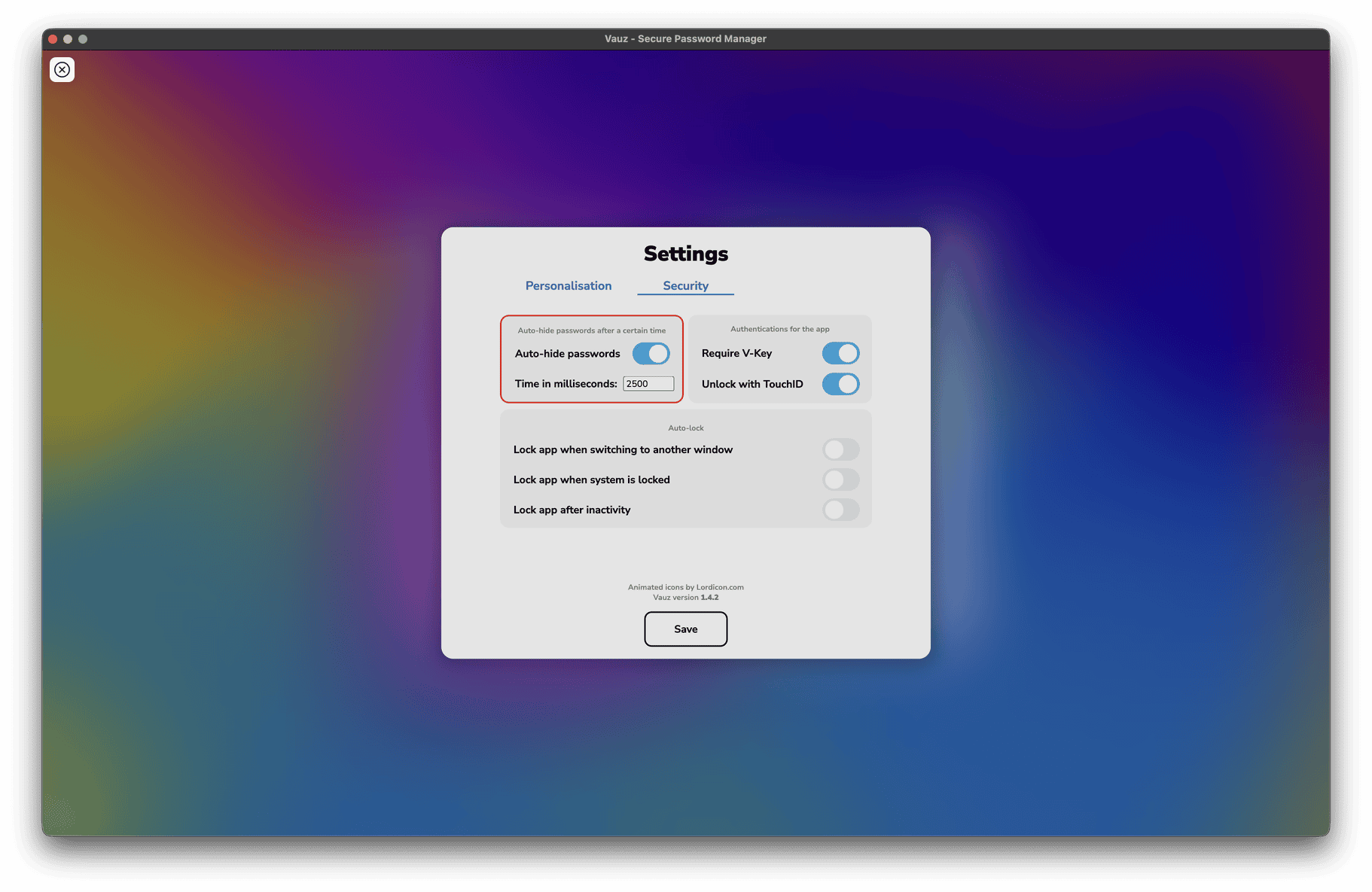
The box is in milliseconds, which is an awkward unit, so as a rough guide:
| You type in the box | Password stays visible for |
|---|---|
2500 | 2.5 seconds, the shortest allowed |
10000 | 10 seconds |
20000 | 20 seconds |
60000 | a full minute |
Click Save when you are happy. If you do not want passwords hiding themselves at all, simply leave the Auto-hide passwords checkbox unticked
A longer timer means a password sits on your screen for longer, where anyone walking past can read it. That is a fair trade at your own desk, and a poor one in a café or an open-plan office. Pick the number that suits where you actually use Vauz
Stop the app locking while you are still working
Settings > Security also has Lock app after inactivity, with an Inactivity duration (in s) box next to it. If Vauz keeps locking itself while you are halfway through reading something, raise that number. 300 gives you five minutes, 600 gives you ten
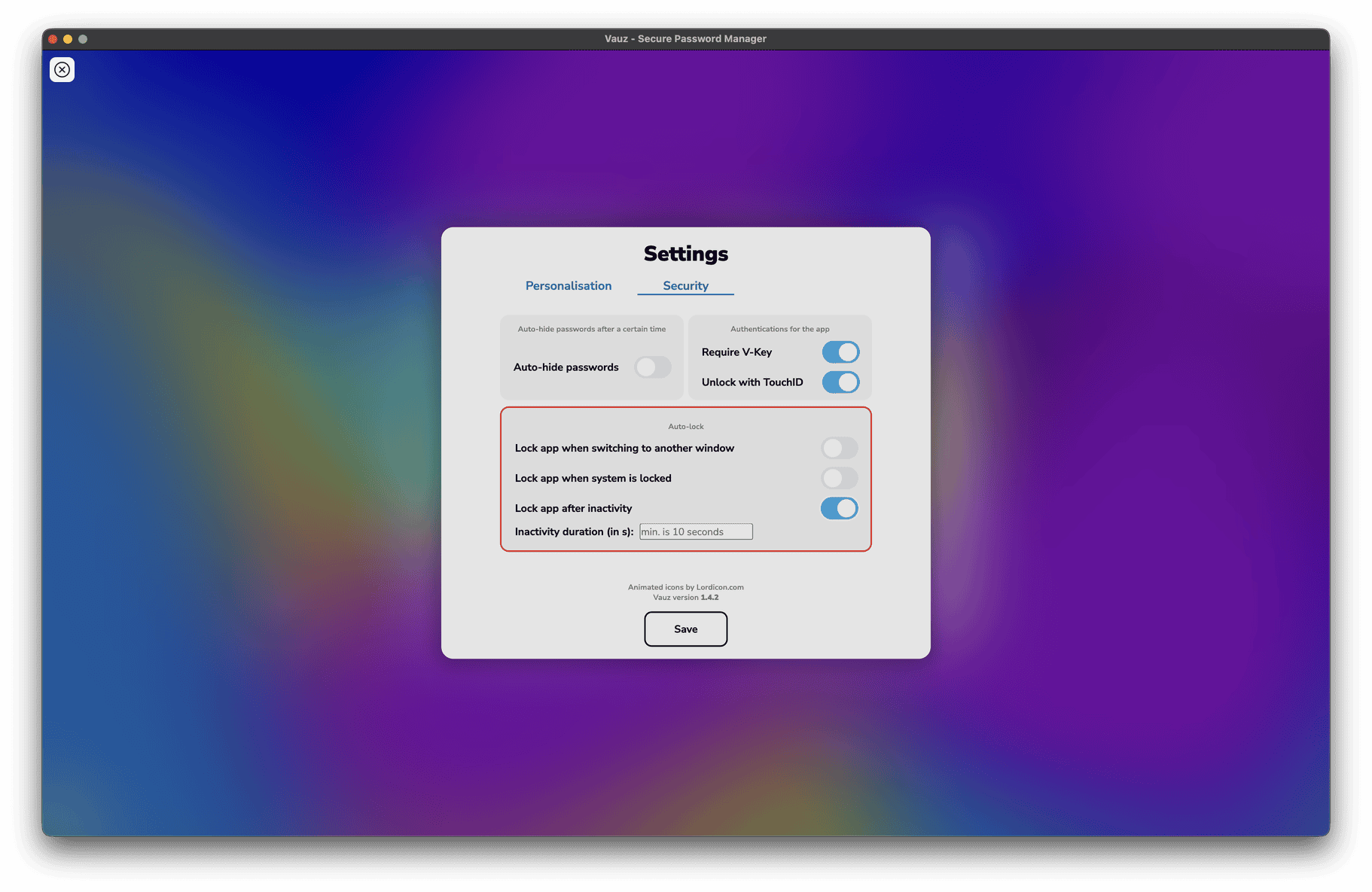
Locking is a genuine protection, so raise it thoughtfully rather than turning it off. But being locked out mid-task every ninety seconds helps nobody, and there is no prize for a timeout so short it makes you avoid the app
Pick a calmer background
Under Settings > Personalisation you can choose between the Vibrancy, Efficiency, Minimalistic and Matrix themes. They change how busy the background behind your entries is
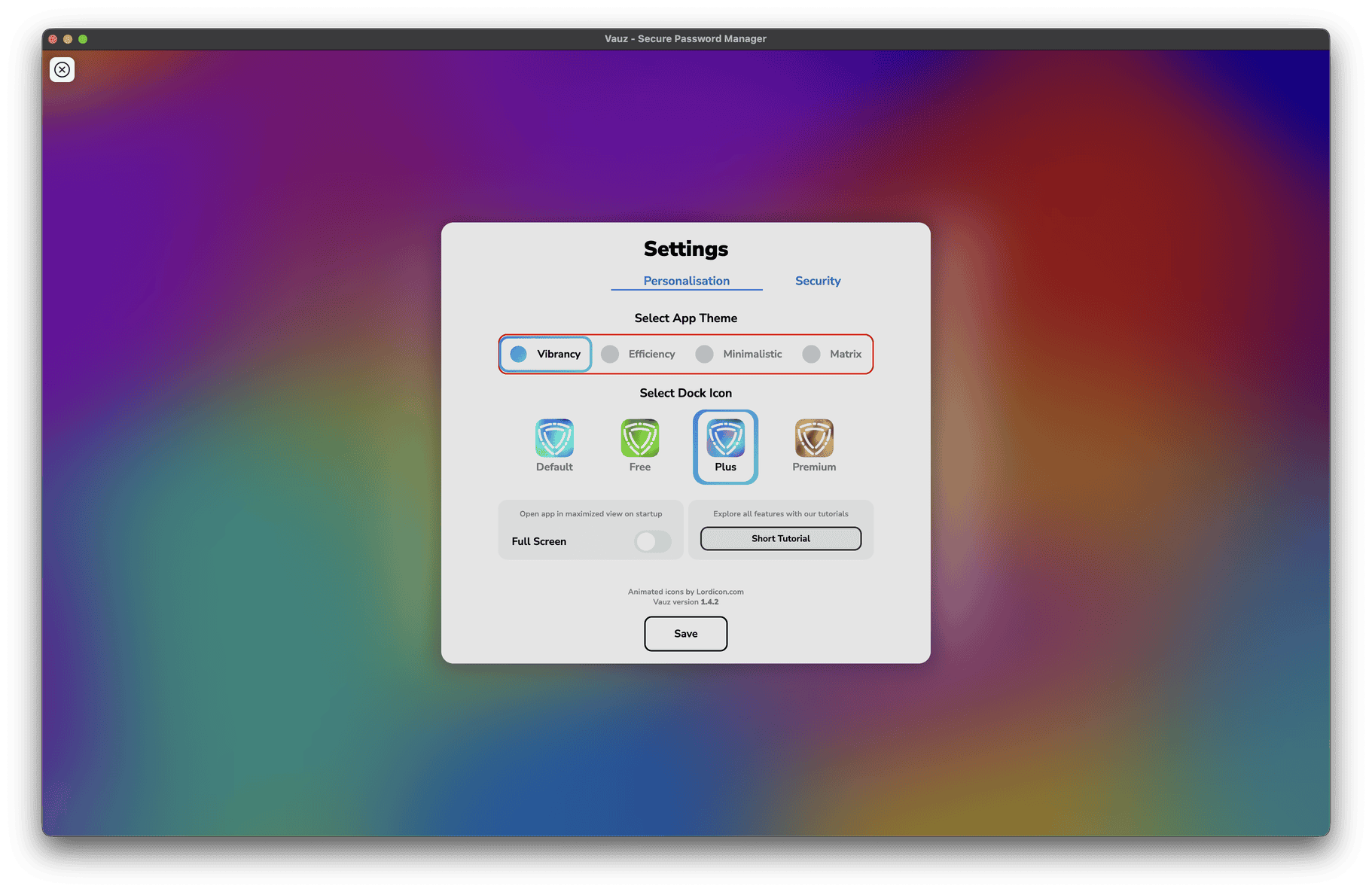
If text feels harder to pick out than it should, try Minimalistic or Efficiency. A quieter background gives the letters more contrast to sit against, and for some people that helps more than another zoom step does
Common questions
Does zooming in change anything about my passwords?
No. Zoom only changes how large things are drawn on your screen. Your entries, your V-Key and your vault are untouched, and nothing is sent anywhere
Do I have to set this up again on my other computer?
Yes. The zoom level and the startup setting belong to the Vauz installation on that machine, so set them once on each computer you use
I zoomed in and now something is cut off
The window needs to be bigger, or the zoom needs to come down a step. Maximise the window first, and if it is still cramped press ⌘ + - or Ctrl + - once. See Give the window some room first
Can I make only the passwords bigger, and leave the rest alone?
Not separately, no. Vauz scales as one piece, so everything grows together
The shortcut does nothing when I press it
Click once anywhere on the Vauz window first, so Vauz is the app your keyboard is talking to, then try again. If it still does nothing, use the View menu instead, which does exactly the same job. On Windows and Linux, tap Alt first to bring the menu bar into view
Related Articles
Still struggling to read Vauz comfortably?
We would genuinely like to know. Accessibility problems are the kind we want to fix in the app rather than work around in a support article, so please contact Vauz support and tell us:
- Your operating system and version
- Your Vauz version
- Which parts of Vauz are hardest to read
- Whether zooming in helped, and what was still difficult afterwards
- Any accessibility tools you use, such as a screen magnifier or a screen reader